- En vedette
 Mise à jour du firmwarev1.2
 Téléchargement du journal de volv1.1
 Portail USB en lignev1.0
 Configurateur WiFi USB en lignev1.1
- Tous les outils
 3D parts toolv1.0
 Calculateur de trou d'aérationv1.0
 API Altimeter Cloudv1.0
 Prédicteur d'altitudev1.0
 Calculateur de résistance du tubev1.0
 Calculateur de descentev1.0
 Calculateur de charge d'éjectionv1.0
 Programmeur web ESPv1.0
 Calculateur de flottement d'aileronv1.0
- Mise à jour du firmwarev1.2
- Téléchargement du journal de volv1.1
 Vérification du journal de volv1.1
 GNSS seed datav1.0
 Inland Water Mapv1.0
 Concepteur de pieces laserv1.0
- Launch Site Survey, Weather & Predicted Landingv1.0
 Ligne de vue et liaison radiov1.0
 Main Roads Mapv1.0
 Nano USB Settingsv1.0
- Portail USB en lignev1.0
- Configurateur WiFi USB en lignev1.1
 Power Lines Mapv1.0
 Calculateur de vitesse de rampev1.0
 Calculateur de dérivev1.0
 Tree Canopy Height Mapv1.0
 Calculateur de visibilitév1.0
 Wind Turbine Mapv1.0
| Part | Size | Qty | ||
|---|---|---|---|---|
| No parts yet. Design one above and click Add. | ||||


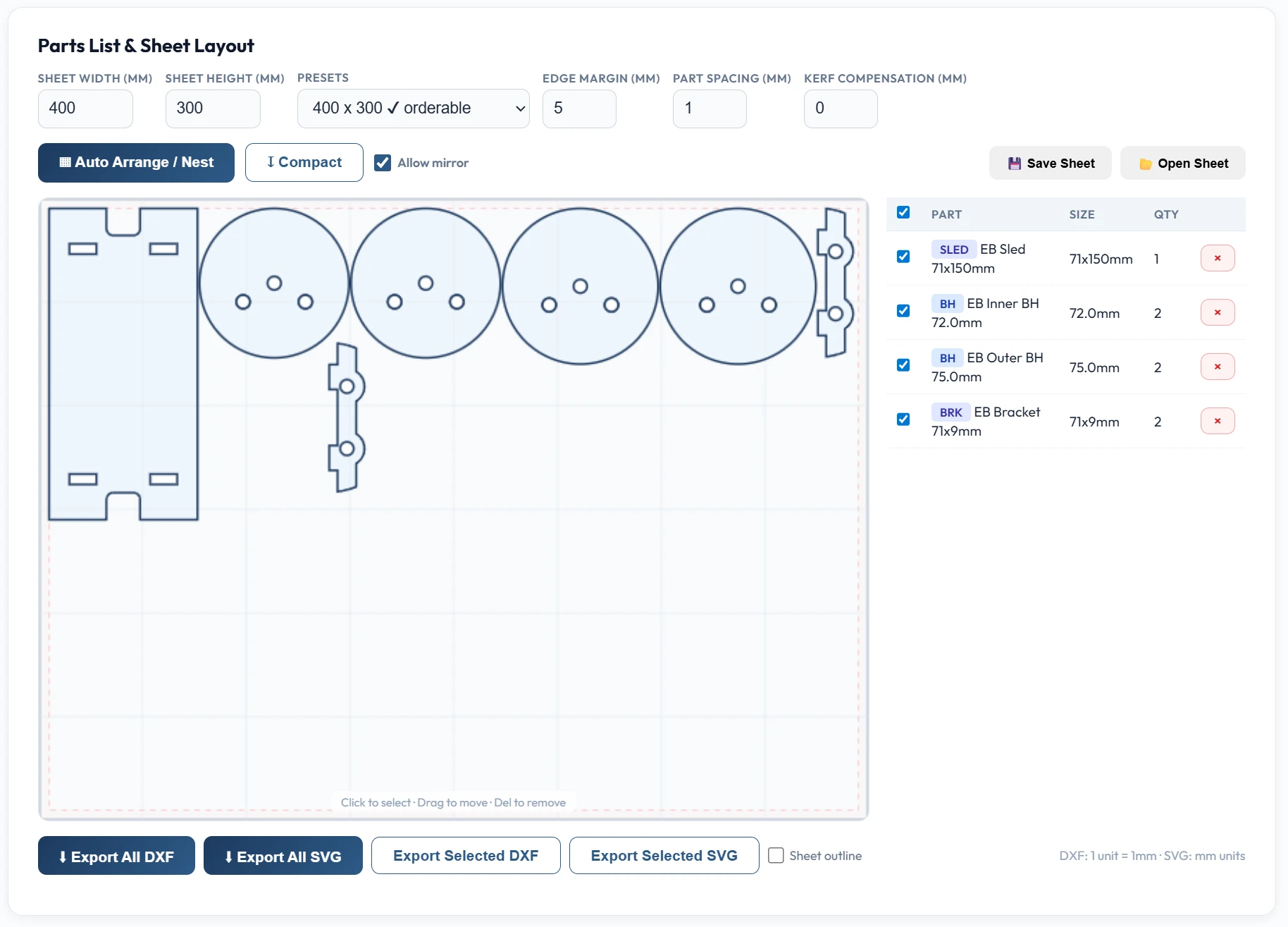
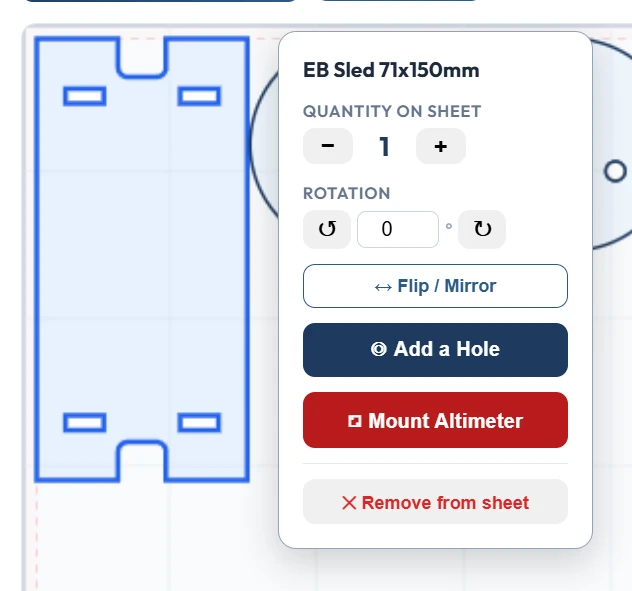
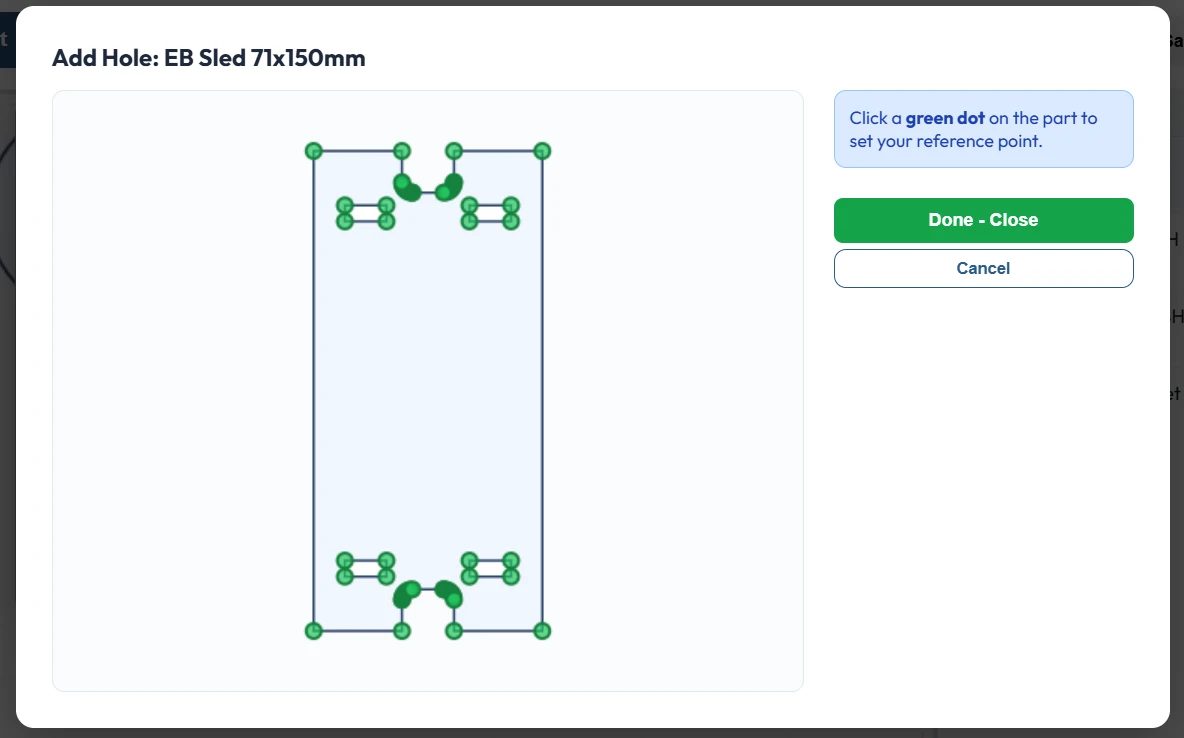
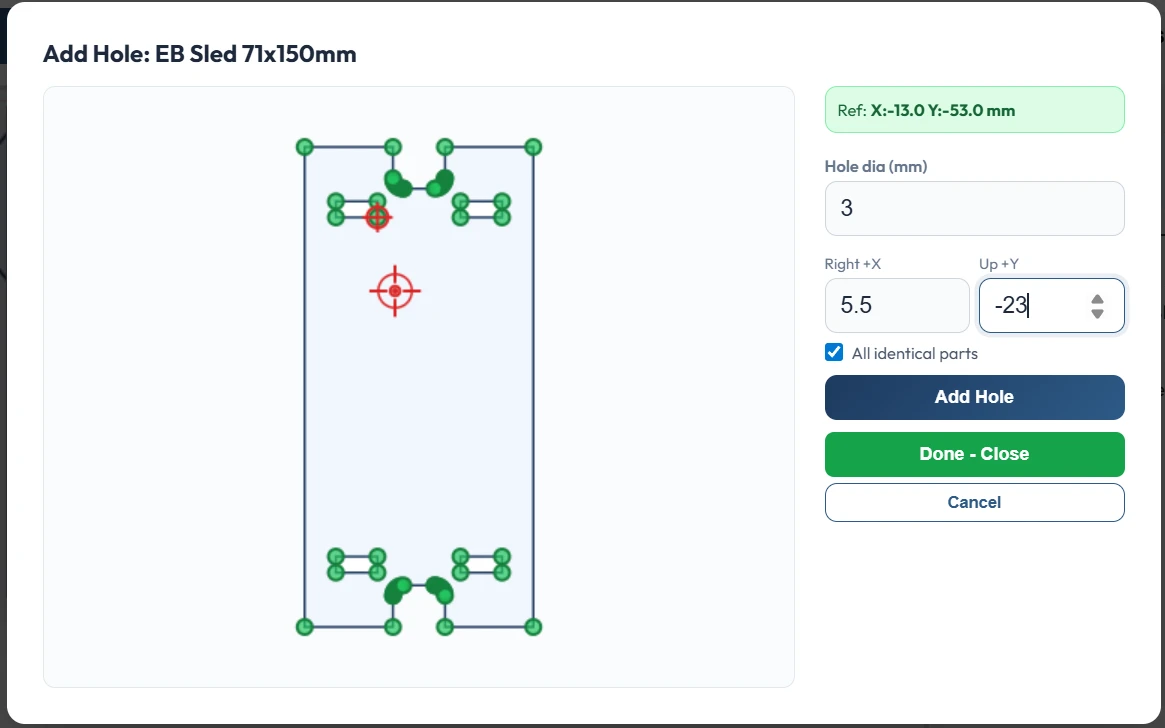
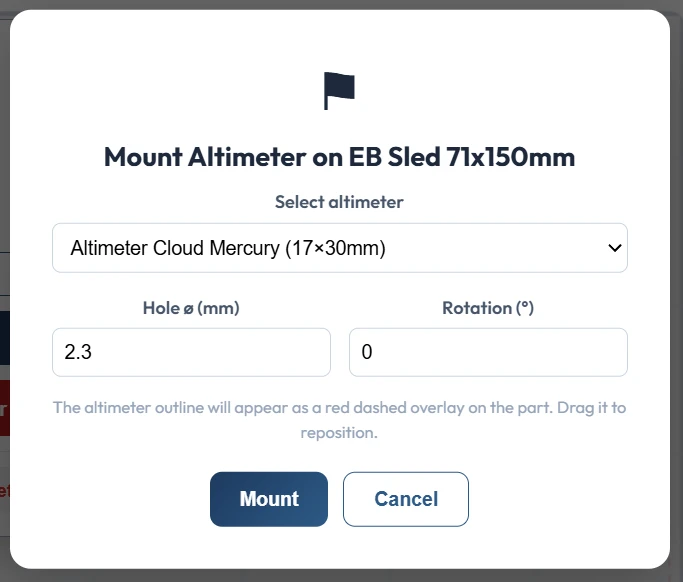
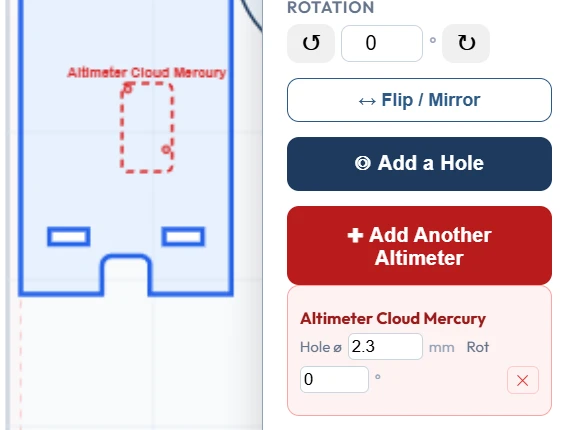
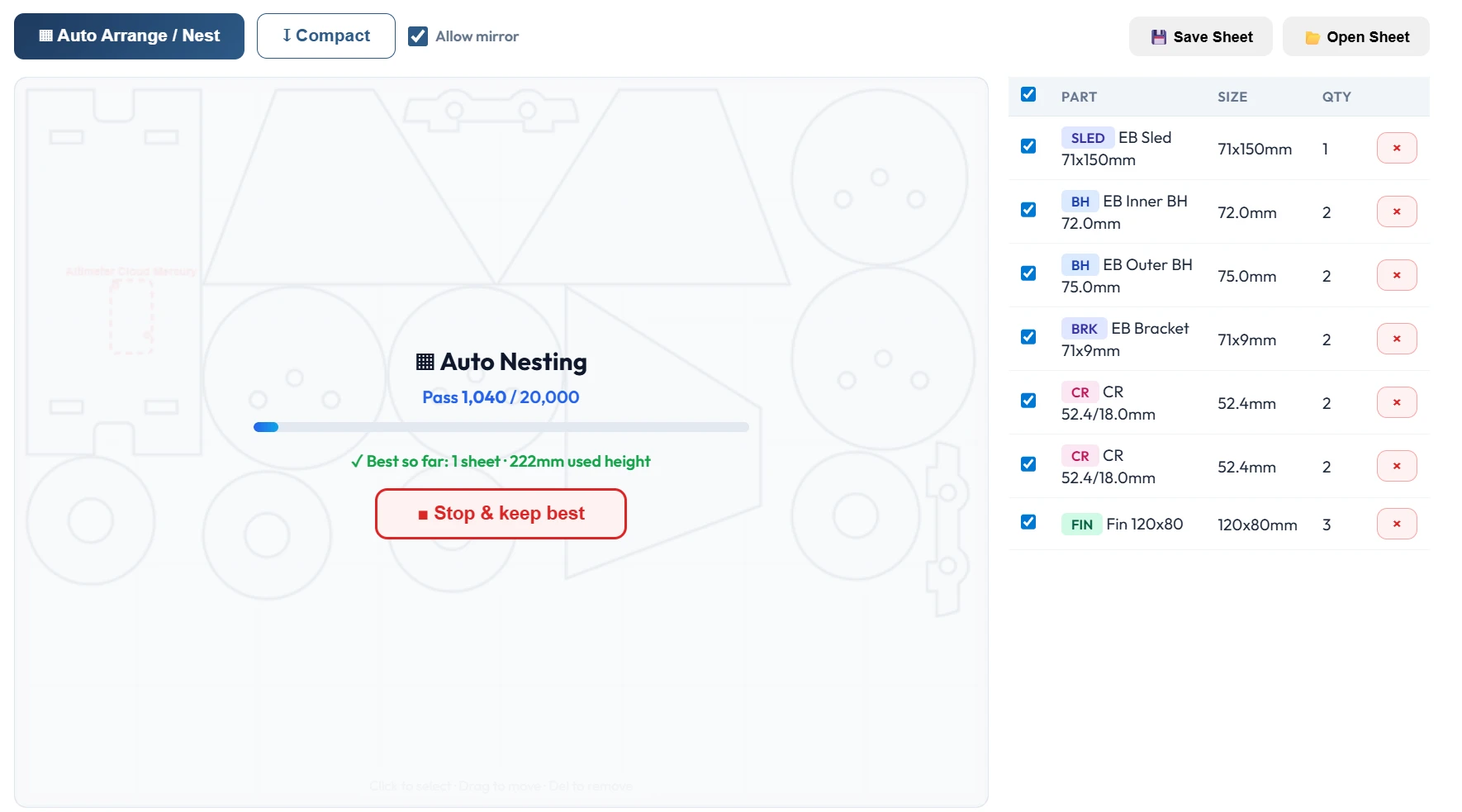

Laser cut rocket parts: design and export DXF / SVG
Laser cutting is one of the fastest ways to produce accurate flat rocket parts, bulkheads, centering rings, fin templates, motor mount rings and e-bay brackets, with a precision and repeatability that's hard to match by hand. This generator produces parametric vector designs with real-world dimensions, which you export as DXF or SVG for your laser cutter, CNC router or waterjet. The built-in tube database covers common airframe sizes from BMS, Estes, LOC, Madcow, Apogee and other suppliers, so you can pick a standard tube and the dimensions auto-fill.
Materials for laser cutting rocket parts
Aircraft plywood (1/8" to 1/4"): The most common material for low-power and mid-power rockets. Cheap, widely available, cuts cleanly on any CO2 laser. Typical Young's modulus 5-10 GPa depending on grade. Grade A aircraft plywood is strongest. Basswood: Popular for fins because it's light, stable and has straight grain. Good for fin templates and lightweight centering rings. G10 fibreglass sheet: The HPR standard for bulkheads and fins. Very stiff (18-25 GPa) and strong. Requires a fibre-capable laser (higher wattage, better fume extraction) or a waterjet, many hobby CO2 lasers struggle with G10 at thickness over 3mm. Acrylic and polycarbonate: For transparent e-bay doors or decorative elements. Acrylic is brittle for structural use. MDF: Cheap and good for jigs, templates, and mockups; not suitable for structural flight parts. Carbon fibre sheet: Cannot be safely cut on a standard CO2 laser (toxic fumes and fibres). Use waterjet.
DXF vs SVG: which format?
DXF is the universal format accepted by every major laser cutter software: LightBurn, RDWorks, Glowforge, Epilog, Trotec, xTool Creative Space, Boss Laser. It preserves exact dimensions and works offline. SVG is accepted by many cloud-based and consumer lasers (Glowforge, xTool), plus browser-based CNC software. Both formats export clean outline-only vector paths suitable for cutting. If you're unsure, start with DXF, it's the most widely supported.
Fit tolerances and laser kerf
A centering ring's outer diameter should equal the body tube's inner diameter minus a small tolerance for glue thickness, typically 0.2mm for a snug fit or 0.5mm for easier assembly with thicker glue beads. The inner hole for the motor mount tube adds the same tolerance on top of the mount tube's OD. Laser kerf, the width of material the beam actually removes, is usually 0.1 to 0.3mm depending on laser power, focus and material. Most modern cutter software applies kerf compensation automatically, but verify your settings. A test cut on scrap material confirms you're getting the intended dimensions before cutting a full set of rings.
Fin strength for HPR flights
Laser-cut aircraft plywood fins are suitable for low-power and mid-power flights and HPR up to about Mach 0.7. For higher speeds the fin flutter boundary becomes a concern, check the fin flutter calculator. Tip-to-tip glassing (fibreglass cloth laid over the fins and wrapped across the airframe) adds substantial torsional stiffness to plywood fins and is standard practice for HPR builds. For supersonic flights G10 fibreglass or aluminium fins are preferred, typically cut by waterjet rather than laser. Choose fin material to match your expected max velocity and motor class.
Typical parts produced
Centering rings: Hold the motor mount tube concentric inside the airframe tube. Usually 3 per rocket (top, middle, bottom) with matched inner and outer diameters. Bulkheads: Seal the e-bay from ejection gases, anchor the shock cord and altimeter hardware. Usually 1 or 2 per bay with optional through-holes for wiring and eye-bolt attachment. Fin templates: Either used directly as flight fins (with appropriate material choice) or as precision templates for tracing onto flight material. Motor mount rings: Retain the motor inside the mount tube, often combined with a thrust ring or retainer. E-bay coupler plates: Bolt-together brackets that hold altimeters and batteries.
Frequently asked questions
What materials can be laser cut? Aircraft plywood, basswood, G10 fibreglass (with appropriate laser), acrylic, polycarbonate, MDF. Carbon fibre should be waterjet-cut, not laser.
DXF or SVG? DXF is universal across all laser cutter software. SVG works with many cloud-based and consumer lasers. Both export clean outlines.
What tolerance for centering rings? 0.2-0.5mm smaller than tube ID for the outer edge, 0.2-0.5mm larger than motor mount OD for the inner hole.
How do I handle laser kerf? Most cutter software applies kerf compensation automatically. Test cut on scrap to verify finished dimensions.
Are laser-cut plywood fins strong enough for HPR? Up to about Mach 0.7 with appropriate thickness. Use G10 or glassed plywood for faster flights.