You can update the firmware using a PC or Laptop and our firmware update tool.
Before you begin: Use Google Chrome, Microsoft Edge, or Opera. Make sure your USB cable supports data transfer — power-only cables will not work.
Connect the screen to your PC or Laptop
Use a USB-C data cable to connect the Mercury Screen to your computer.
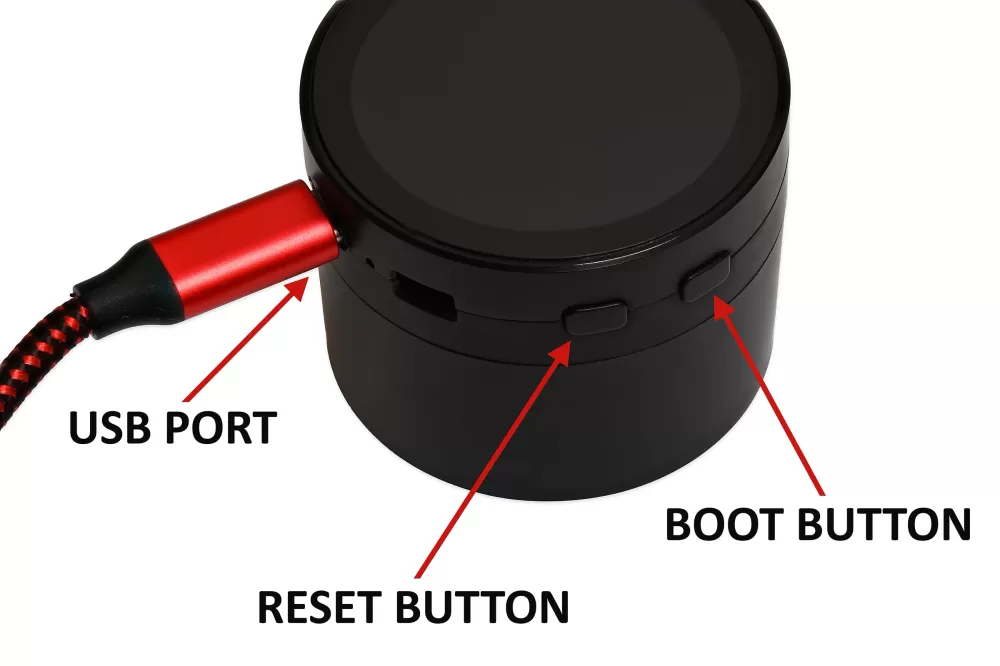
Put the screen into firmware update mode:
- Press and hold the BOOT button.
- While still holding BOOT, briefly press the RESET button.
- Release BOOT. The screen is now in update mode.
Open the update tool and connect
Visit the firmware update tool page and click Connect Device at the top.

Install the firmware
Click Install next to the latest Screen firmware.
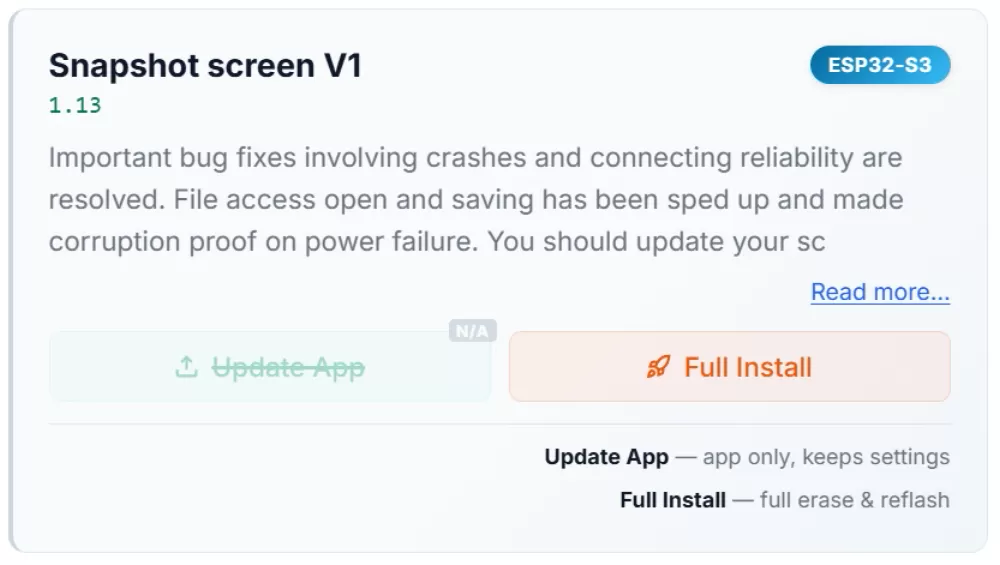
A progress bar will show the erase and install phases. The full process typically takes 45 seconds to 1 minute.


Don’t panic: The progress bar may sit on 99% or 100% for 30–40 seconds at the end while the new firmware is verified. This is normal.
Once complete, press the RESET button to restart the screen with the new firmware.