The best way to manage your Mercury altimeter is via the Altimeter Cloud website.
In order to do this you need to configure WiFi network(s) on to the Mercury. When you then turn on your Mercury with a USB cable connected for charging it will enter WiFi mode instead of flight mode. In this state it will scan and connect to any of the configured networks enabling it to upload your flights and download settings you configure on the website.
Once connected to the Internet you can login to the Altimeter Cloud and click on My Devices to add your Mercury to your account.
Option 1: USB Cable and the Altimeter Cloud website tool
This is the quickest and easiest way to connect your Mercury to the internet.
Connect your Mercury to a PC or Laptop using a USB cable and load a Google Chrome, Microsoft Edge or Opera web browser.
Then just pop over to our tool at https://www.altimetercloud.com/tools/usb_wifi_configuration/
You can also find the link in the header of the website called "USB WiFi config"
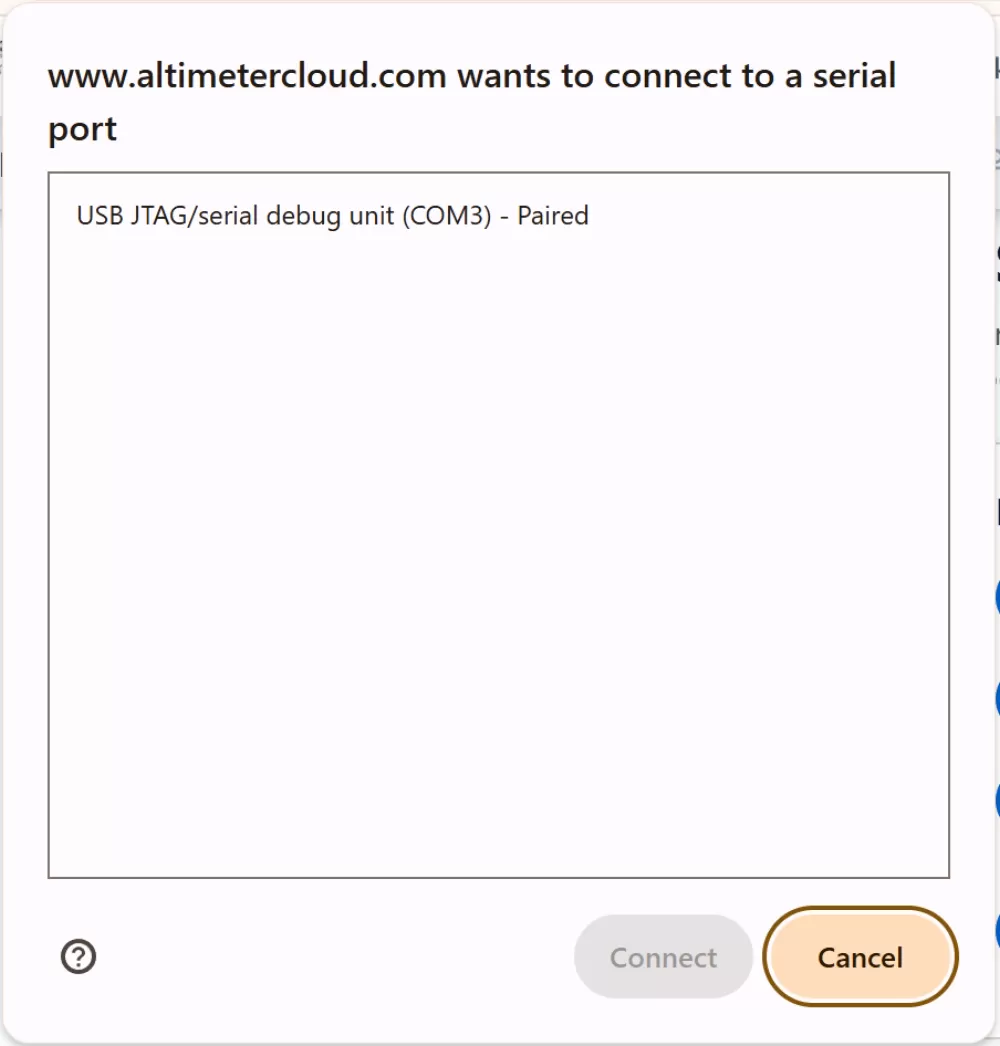
Click on "Connect device" and pick the item called USB JTAG/serial.
Now click connect.
You can now configure your WiFi networks and even scan for them via this page.
Once configured just click the "Send settings" button at the bottom of the page.
Your Mercury will now be configured and will restart and connect to your WiFi network.
Option 2: The Mercury internal web server and internal WiFi
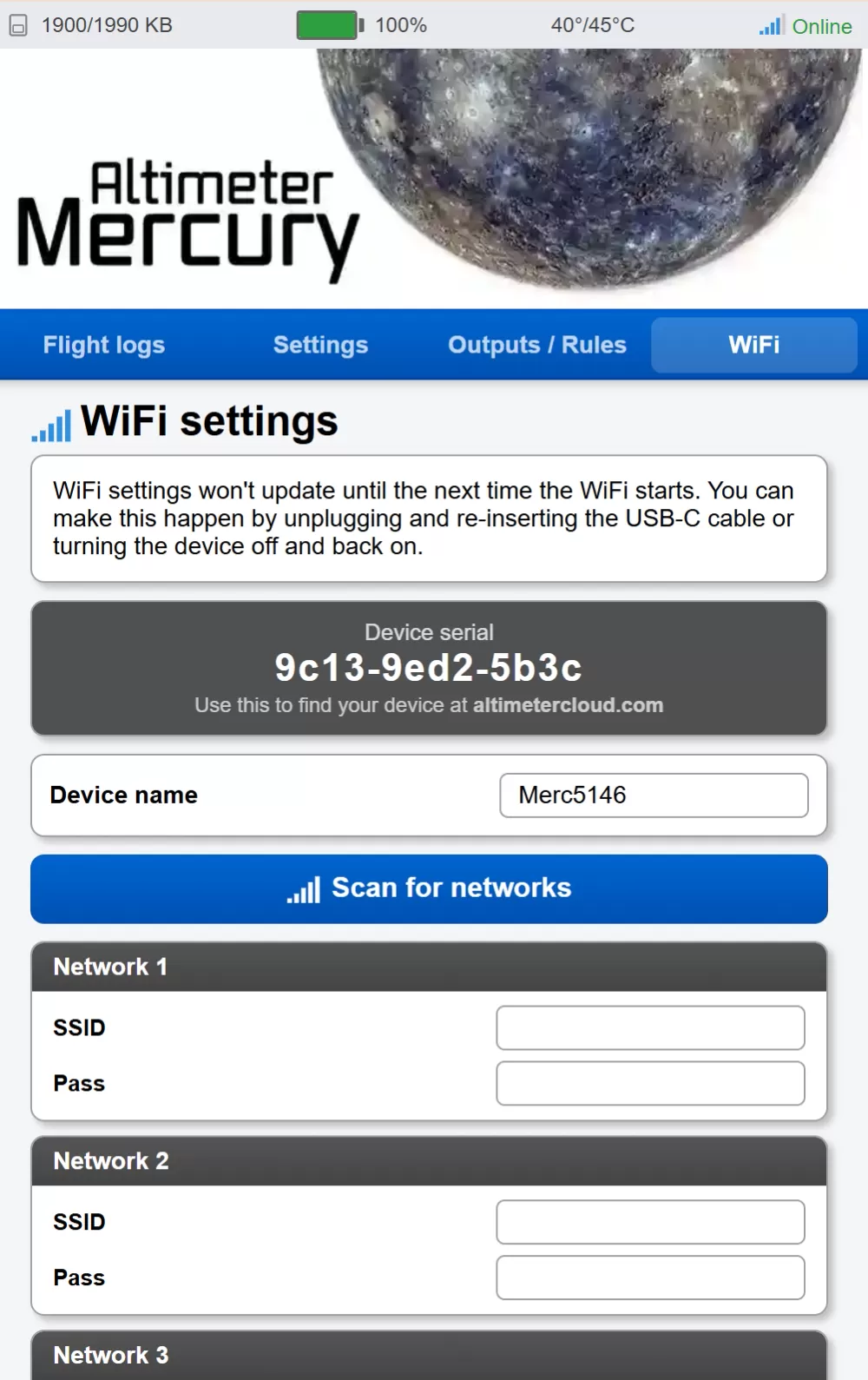 When the Mercury starts up in WiFi mode it also creates its own WiFi network that you can connect to and configure the Mercury directly. Once it is turned on with a USB cable connected to supply power it will enter WiFi mode and this will be enabled. (Starting up without USB power will cause the Mercury to enter Flight mode instead).
Step 1: Connect to the Mercury's WiFi network. It will be called MercuryAlt_0000 the numbers may be different at random. The default WiFi password will be written on the back of the packaging, but if you hold down the "BUTTON" on your Mercury for 10 seconds it will remove the password and become an Open WiFi network until the next reboot as another option.
Step 2: Your device may complain that there is no Internet and do you still want to connect. Say you do want to connect if this occurs.
Step 3: Visit the following page in a web browser, you may need to type the full http:// part as well as the IP address. http://192.168.0.1
Step 4: You can now configure your altimeter settings and WiFi networks under the WiFi menu option.