La pantalla Mercury muestra datos de vuelo en vivo e historial de vuelos almacenados de su altímetro Mercury o Nano. Conectarlo toma solo unos pocos segundos.
Muestra una instantánea de datos y mini gráficos simplificados con 300 puntos de datos en cada uno de su vuelo más reciente.
Facilita mucho comprobar cómo fue su vuelo más reciente en el campo o durante competiciones para ver los resultados de cientos de altímetros con facilidad.
Antes de comenzar: Asegúrese de que su altímetro Mercury esté apagado. Use un cable de datos USB-C; los cables de alimentación únicamente no llevarán la señal necesaria. El Nano requiere un cable de micro USB a USB-C para conectarlo.
Encienda la pantalla Mercury
Deslice el interruptor de encendido en el lado de la pantalla Mercury a la posición de encendido. La pantalla se despertará y mostrará la animación del cohete, luego se estabilizará en la pestaña de Vuelo. Luego se dormirá después de 20 segundos pero seguirá funcionando. Toque la pantalla o conecte un altímetro y se despertará instantáneamente.
Conecte su altímetro mientras está apagado
Con su altímetro Mercury o Nano apagado, conecte el cable USB entre el altímetro y la pantalla Mercury.
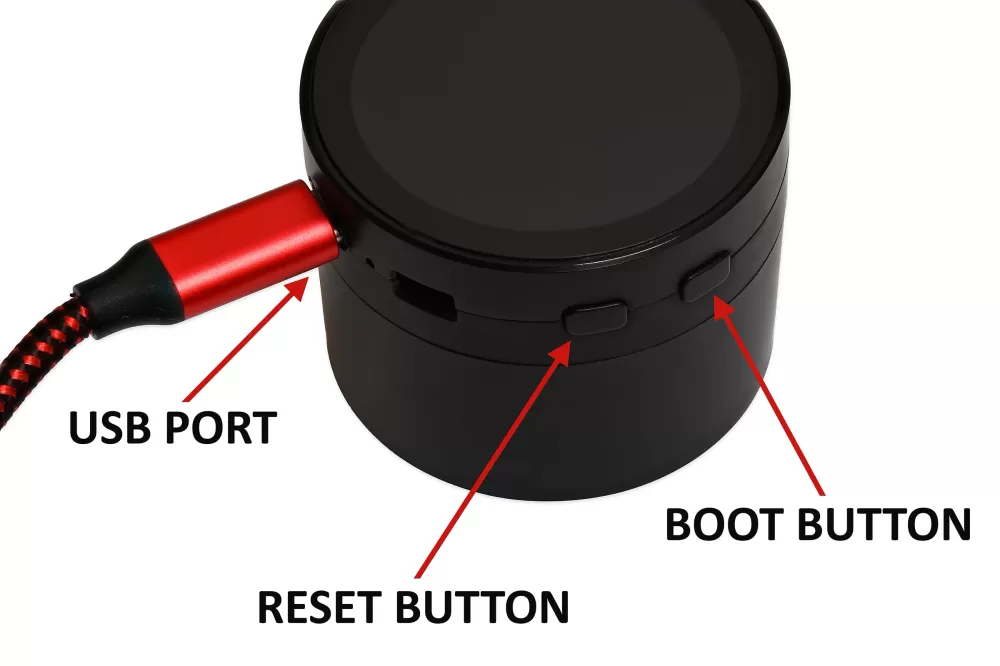
Encienda el altímetro
Ahora encienda su altímetro. Durante su inicio detectará la pantalla y comenzará a enviar datos. Debería escuchar un timbre de conexión de tres notas dentro de unos pocos segundos, y los datos de vuelo aparecerán en la pantalla.
Si aún no tiene ningún vuelo almacenado en su altímetro, solo la pestaña de Información del altímetro mostrará detalles. Los datos de vuelo aparecerán después de su primer vuelo grabado.
Lo que verá primero
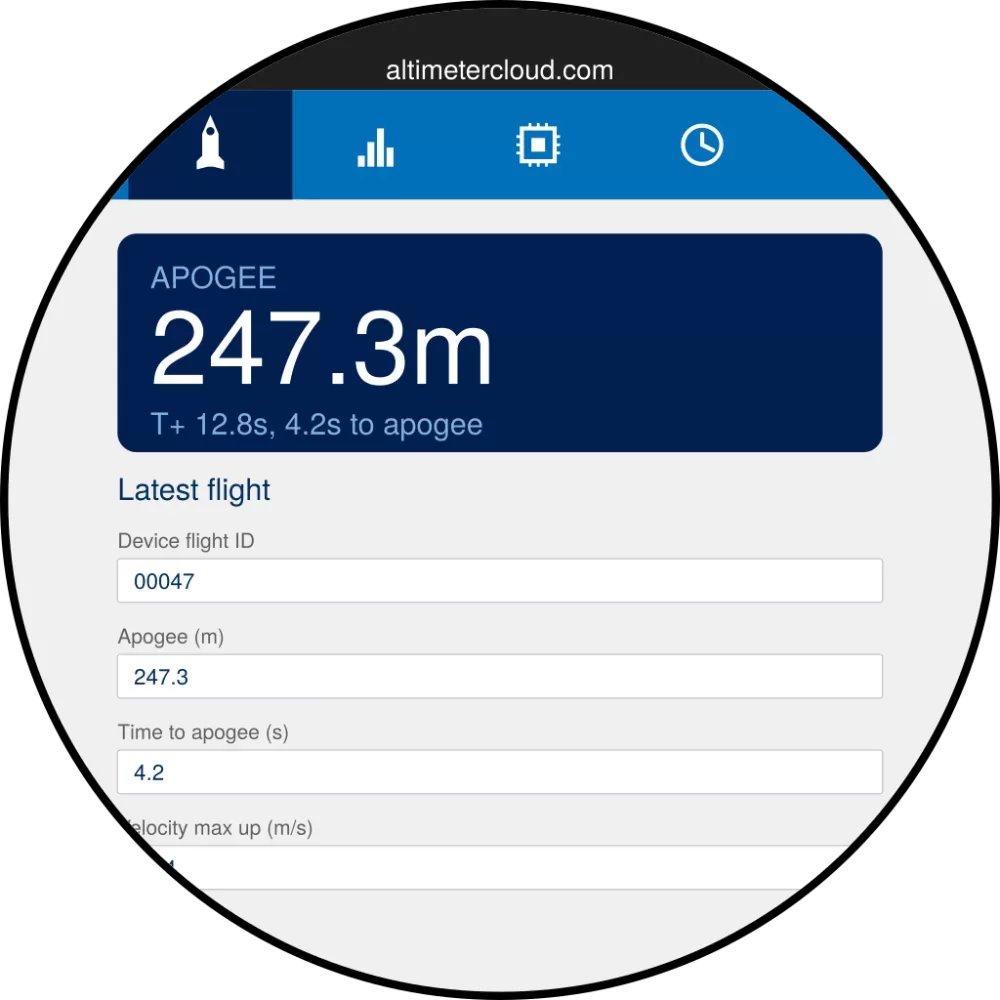
Después del timbre, la pestaña de Vuelo (el icono de cohete) muestra su vuelo más reciente. La apogea se extrae en el gran cuadro azul en la parte superior — todo lo demás se enumera debajo en el orden en que el altímetro lo informa.
Para aprender cómo moverse entre pestañas, ajustar configuración y trabajar con vuelos almacenados, consulte Cómo usar la pantalla.
Si no aparecen datos: el timbre de tres notas debe sonar dentro de cinco segundos de encender el altímetro. Si no lo hace, primero verifique el cable (debe ser un cable de datos, no solo para cargar), y asegúrese de que ambos extremos estén completamente asentados. Luego reinicie el altímetro — la pantalla seguirá lista y esperando.