The Snapshot Screen displays live flight data and stored flight history from your Mercury or Nano altimeter. Connecting it takes just a few seconds.
It shows a snapshot of data and simplified mini charts with 300 data points on each from your latest flight.
It makes it really easy to check how your latest flight went in the field, or during competitions, to view the results from hundreds of altimeters with ease.
Before you begin: Make sure your Mercury altimeter is turned off. Use a USB-C data cable, power-only cables will not carry the signal needed. The Nano requires a micro USB to USB-C cable to connect it.
Turn the Snapshot Screen on
Slide the power switch on the side of the Snapshot Screen to the on position. The screen will wake and show the rocket animation, then settle on the flight tab. It will then go to sleep after 20 seconds but it's still running. Tap the screen or connect a altimeter and it will wake itself up instantly.
Connect your altimeter while it is off
With your Mercury or Nano altimeter powered off, connect the USB cable between the altimeter and the Snapshot Screen.
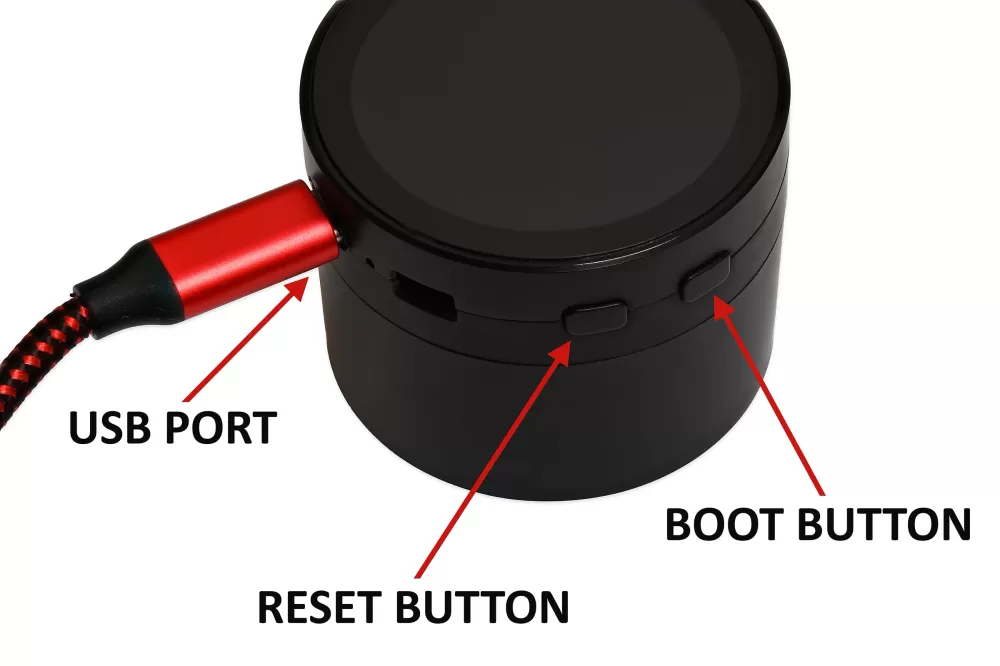
Turn the altimeter on
Now turn your altimeter on. During its startup it will detect the screen and begin sending data. You should hear a three-note connection chime within a few seconds, and flight data will appear on the screen.
If you don’t yet have any flights stored on your altimeter, only the altimeter info tab will show details. Flight data will appear after your first recorded flight.
What you’ll see first
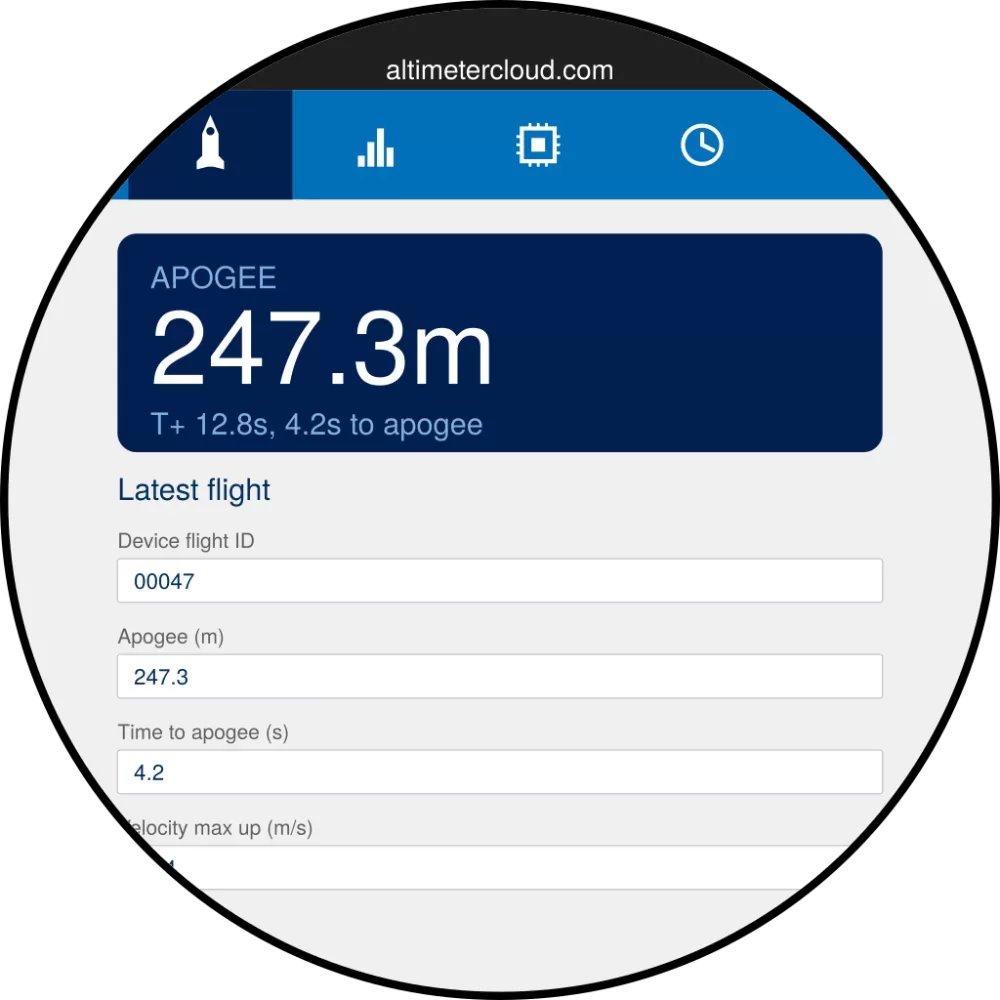
After the chime, the flight tab (the rocket icon) shows your most recent flight. Apogee is pulled out in the large blue box at the top — everything else is listed underneath in the order the altimeter reports it.
To learn how to move between tabs, adjust settings, and work with stored flights, see How to use the screen.
If no data appears: the three-note chime should play within five seconds of turning the altimeter on. If it doesn’t, check the cable first (it needs to be a data cable, not charge-only), and make sure both ends are seated fully. Then power-cycle the altimeter — the screen will still be ready and waiting.