There may be occasions where you want to read flight summary data from your altimeters in the field, for example at rocketry competitions. The Mercury can output flight summaries over USB serial to a laptop, PC, tablet, or mobile phone.
PC and laptop
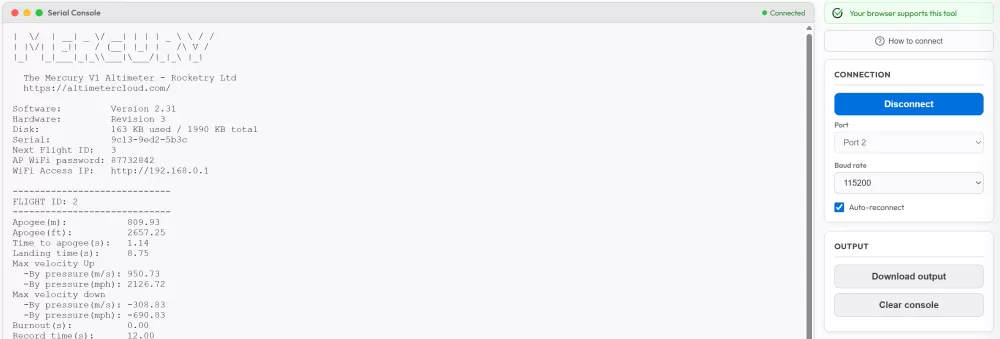
We have a serial USB data reader on our website that works with PCs and laptops running Chrome, Edge, or Opera browsers. Just load up the page, plug in your Mercury via USB, and follow the on-screen instructions.
This will show you your access point WiFi password, recent flight summaries, and a few other details. It may also work with some other browsers and mobile devices, so feel free to try it.
Android
If you're using an Android phone, we recommend the free app "Serial USB Terminal" by Kai Morich on the Google Play Store. We have tested this with the Mercury on Samsung S9, S20, and S24 devices, all working perfectly.
Download Serial USB Terminal on the Play Store
Connecting and viewing
Connect your Mercury via a USB cable to your device and turn it on. The Mercury will enter WiFi mode — wait until the status LED is showing green or blue.
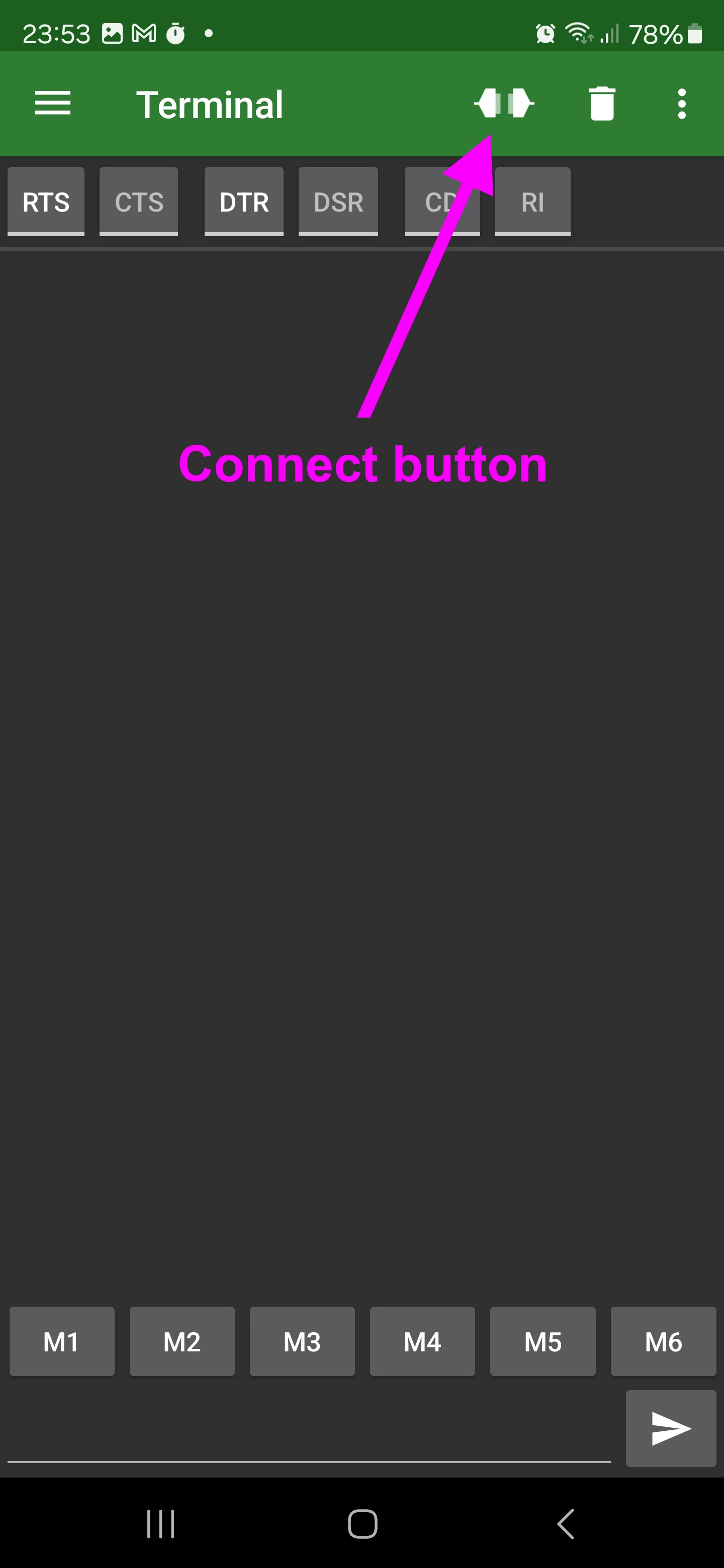
Open the serial software you are using and click the connect button. Your device may show pop-ups asking for permission to connect — tap OK to allow these.
Now press the button on the Mercury for about half a second. It will send the most recent two flight summaries to the serial monitor.
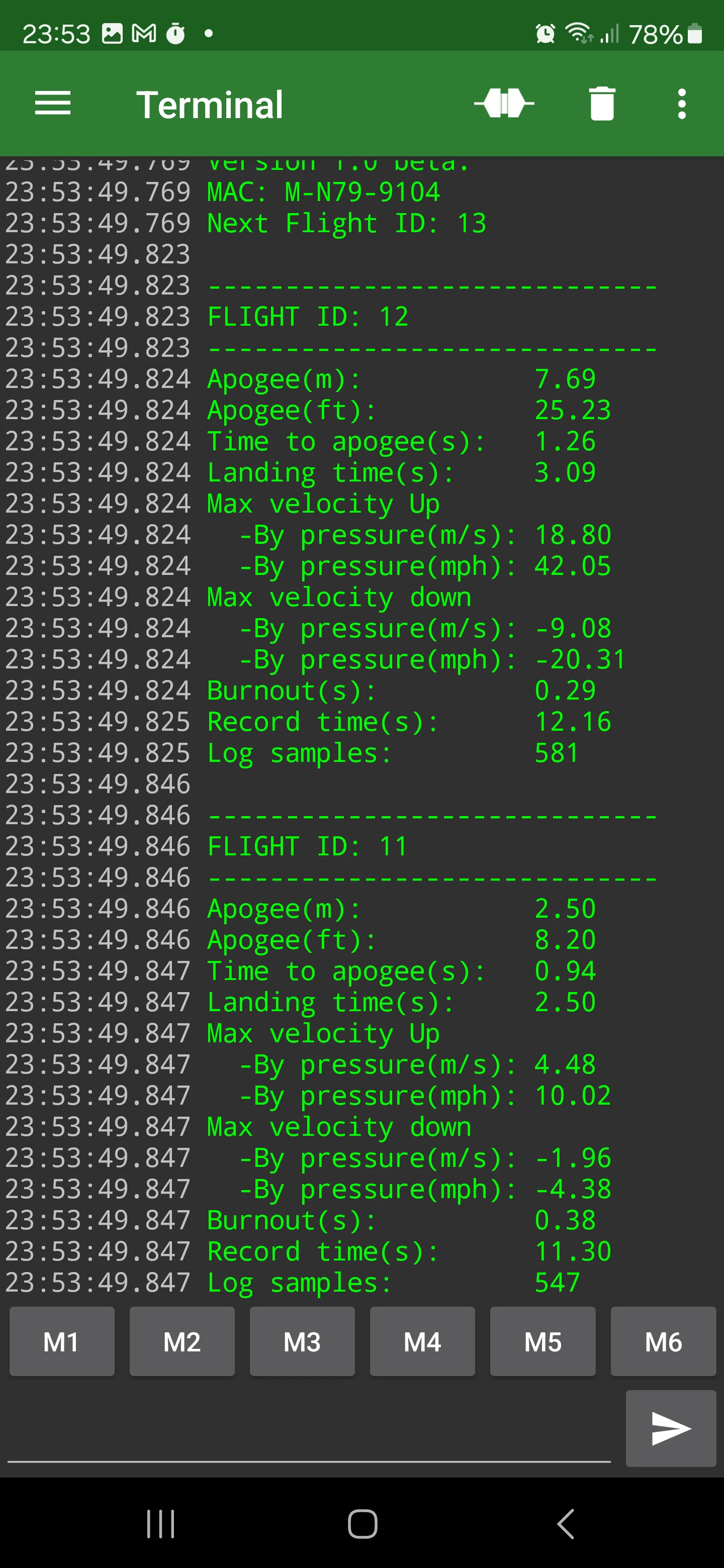
Tip: The serial output gives you a quick summary in the field, but full charts and detailed sensor data for all your flights are available on the Altimeter Cloud. Your flights will upload automatically next time your Mercury connects to WiFi.