The BMP581 sensor (BMP390 revision 2 and before) on the Mercury altimeter is a high precision barometric pressure sensor designed to give incredibly accurate altitude readings from atmospheric pressure. This sensor is capable of providing relative accuracy of around 250mm, and in practice it can detect finer differences than this. It was originally designed for indoor navigation, so it's quite an impressive sensor for a tiny altimeter.
The BMP581 also has an internal temperature sensor that it uses to automatically calibrate its pressure readings. This self-compensation offers further accuracy that many other pressure sensors do not provide.
If you set your launch detect to 1 meter, you can let the device cool and calibrate on the floor, throw it in the air and let it land on your desk. The flight should show your desk height within just a few centimeters to show you just how accurate the Mercury is.
How altitude is calculated
The Mercury uses the standard atmospheric pressure formula to calculate altitude from the current pressure, the sea level pressure, and the temperature:
Where temperature is the static temperature in °C, hpa_pressure is the current pressure reading from the sensor, and sea_level_pressure is the forecast pressure at sea level.
If you don't set your sea level pressure, the device will use whatever was last configured. If it has never been set, it will default to the atmospheric average of 1013.25 mbar. The default static temperature is 15.0°C. These defaults are used by most altimeters and are perfectly fine for general use.
Why forecast pressure matters
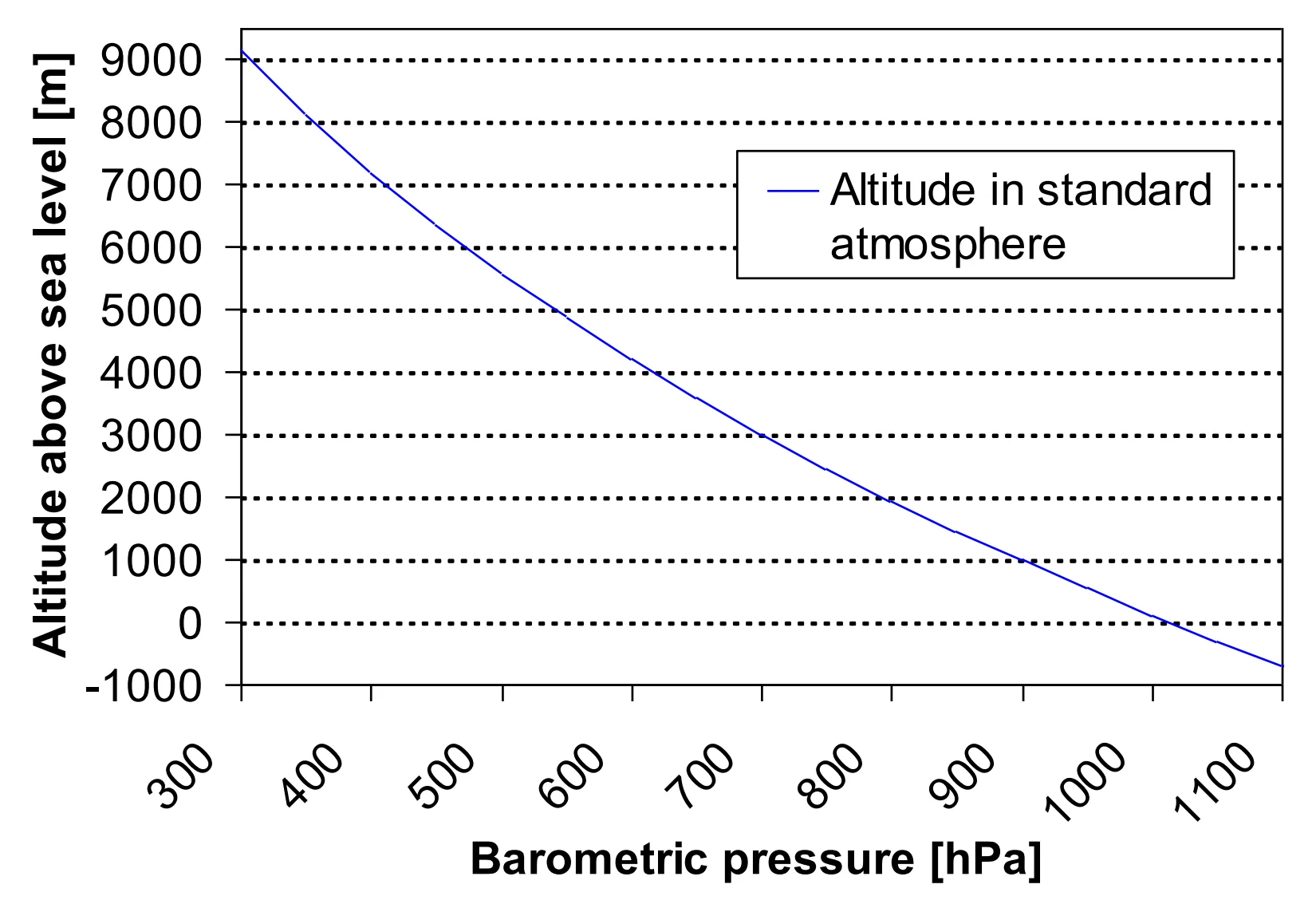
As you can see from the chart above, atmospheric pressure is not a uniform linear line from sea level through to higher altitudes. For the most accurate altitude readings, altimeters need to know the sea level pressure at the time you launch.
For general use on flights that aren't going to very high altitudes, you won't see a huge discrepancy by using the default. However, the difference becomes more significant if you're launching from a high altitude site, launching to high altitudes, or the pressure on your launch day is unusually low or high.
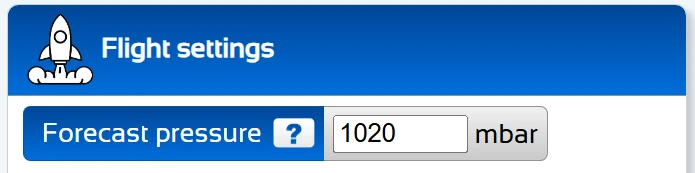
You can set your forecast pressure and the static temperature via the Altimeter Cloud settings, or directly on the device using its WiFi server. On the Altimeter Cloud, you will find the setting under the Flight settings tab on your device's settings page.
Tips for the most accurate altitudes
Beware USB mode warmth
If you've recently used WiFi or configuration mode, the altimeter's PCB will have warmed up from the WiFi radio and processor activity. This affects the accuracy of your readings. In flight mode the board is only a few degrees above ambient temperature.
We advise waiting 5 to 10 minutes after using WiFi mode before flying for the best accuracy.
Enter the ambient temperature
You can enter the ambient temperature of the day you fly in the flight settings. Doing this will fine tune the altitude calculation. If you have an MT1 external temperature sensor connected, you can also have the Mercury use its reading at launch automatically for even better results.
Enter the forecast pressure
Entering the accurate forecast pressure at sea level for your launch site's location and time will give you the most accurate altitude calculations. In the UK, xcweather.co.uk is a good place to look up local pressure readings. You can also check aviation METAR reports for nearby airfields.
Protect the sensor from light
Pressure sensors are light sensitive. If you mount your altimeter directly in an electronics bay without the default Mercury case, make sure light cannot reach the sensor. Direct light exposure will increase noise in your altitude readings. Painting the inside of your payload section black and keeping vent holes small are effective ways to minimise this.