The SnapShot screen is a small round display that connects to your Mercury altimeter via USB cable. It gives you instant access to your most recent flight data without needing a phone, laptop, or WiFi connection — just plug it in and read your results at the launch site.
Getting started
To use the SnapShot screen, turn the screen on first, then turn on your Mercury. The Mercury will detect the screen and enter screen mode, which is indicated by the status LED strobing white and green. Once connected, the Mercury continuously sends data about itself and the most recent flight to the screen.
Tip: The SnapShot screen is great for quick results in the field, but much more detailed data including full charts, sensor data, and flight analysis is available on the Altimeter Cloud. Your flights will upload automatically next time your Mercury connects to WiFi, so you can always review the full data later.
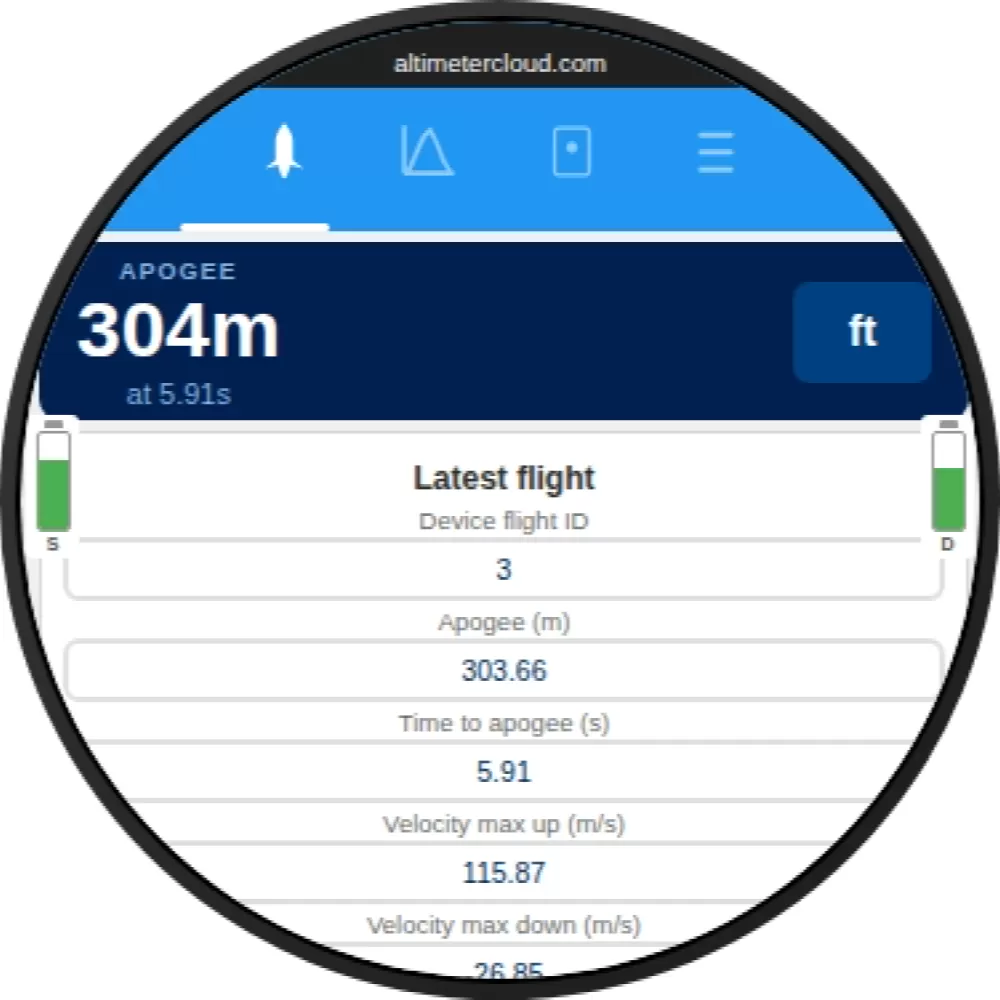
Flight tab
The flight tab shows a summary of the most recent flight from the connected Mercury. This includes the apogee altitude (with a toggle between metres and feet), time to apogee, maximum velocity up and down, and other key flight statistics. The battery levels for both the Mercury (S) and the screen (D) are shown on either side.
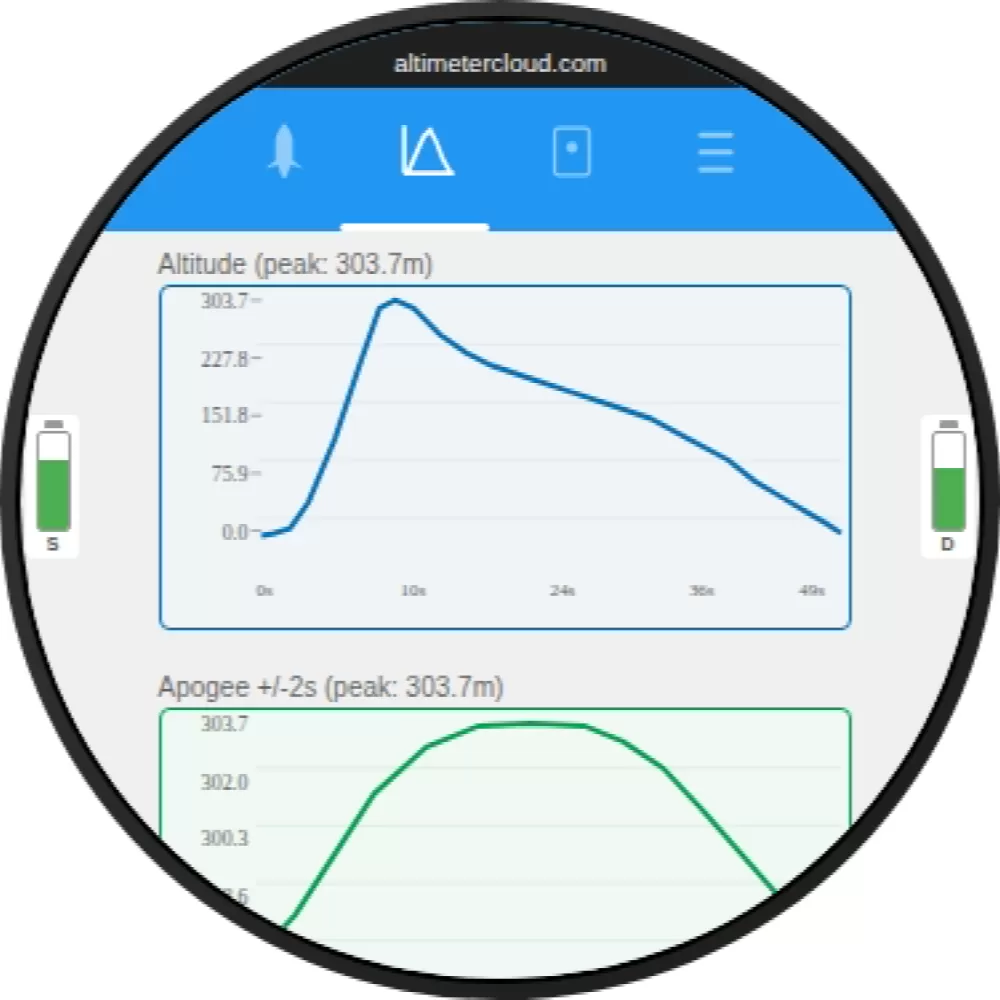
Charts tab
The charts tab displays three mini charts from the most recent flight:
- Altitude — the full flight altitude profile from launch to landing
- Apogee zoom — a zoomed-in view of the altitude around apogee (±2 seconds) showing the peak in detail
- Motor burn — the acceleration magnitude chart during the boost phase
These give you a quick visual overview of how the flight went without needing to wait for a full upload to the Altimeter Cloud.
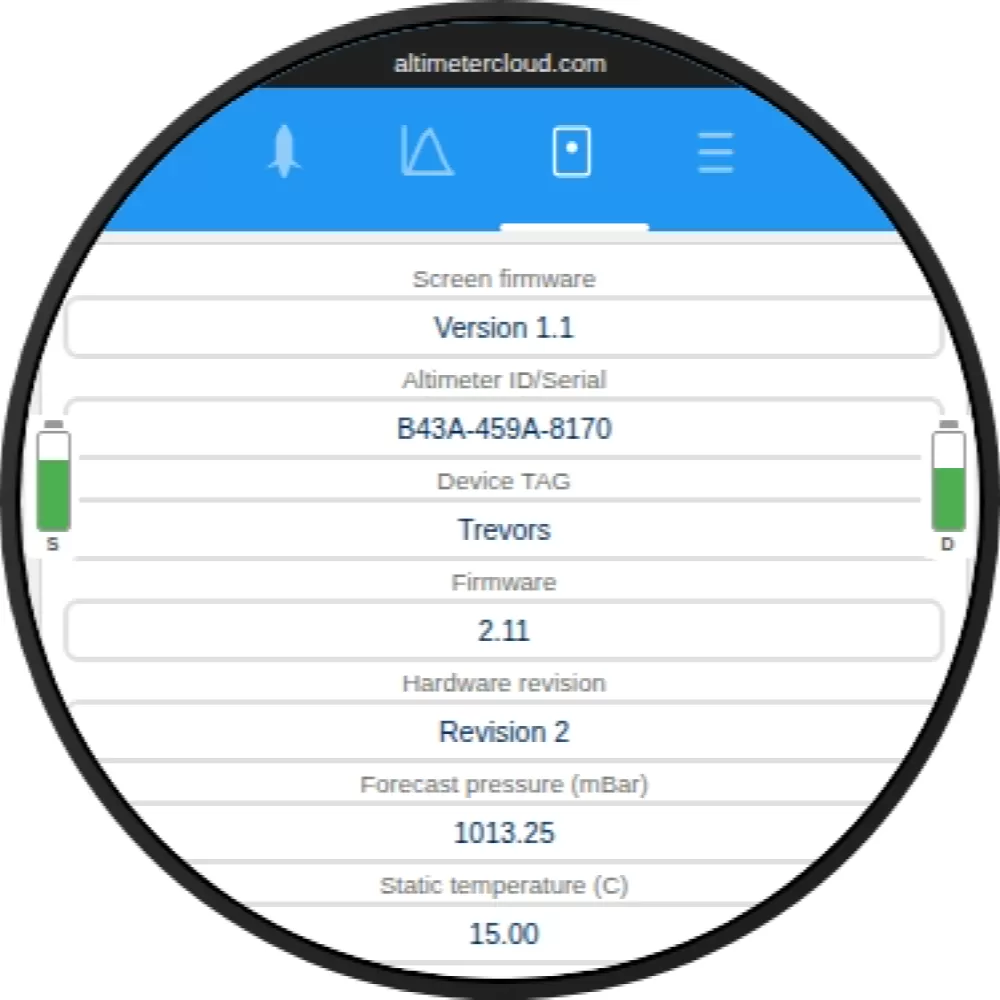
Device tab
The device tab shows information about the connected Mercury including the screen firmware version, the altimeter's serial number, device tag, firmware version, hardware revision, and the current forecast pressure and static temperature settings.
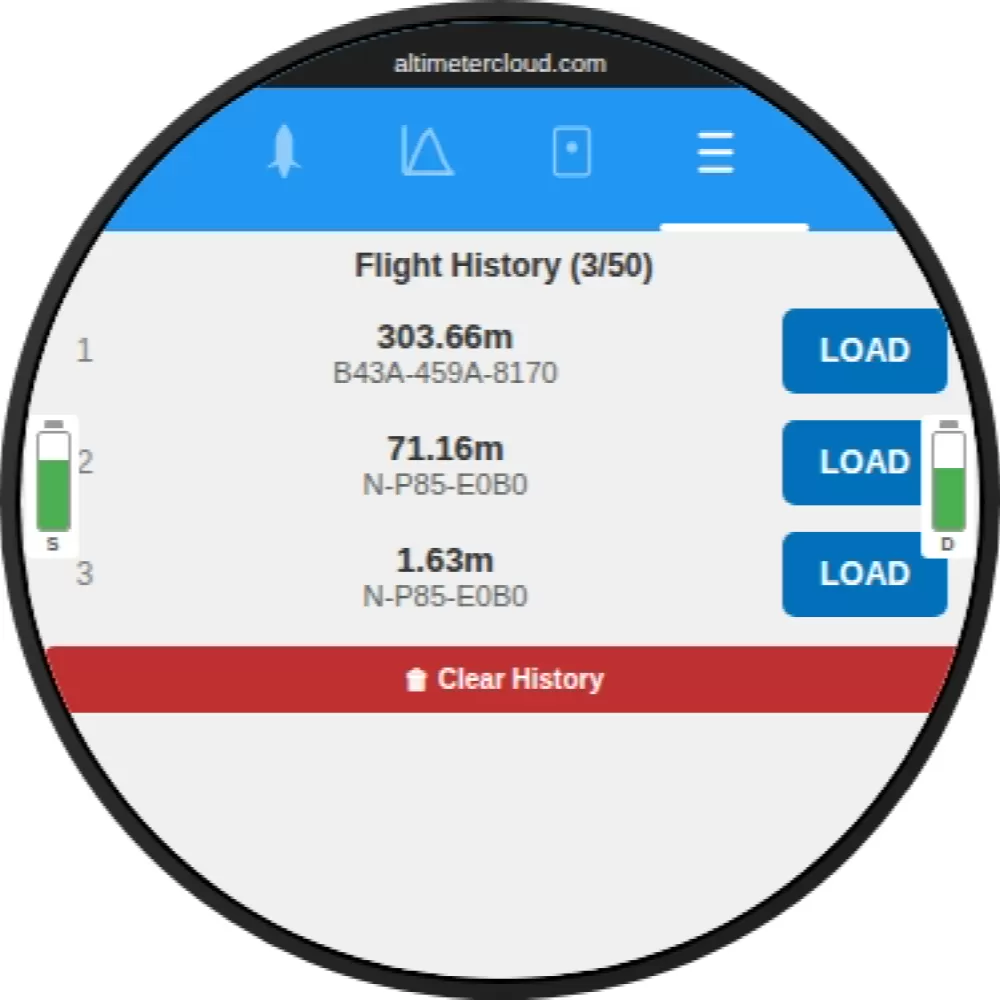
Flight history
The SnapShot screen stores up to 200 flights in its own internal history. Every time a Mercury is connected and has flight data, the screen saves a copy. You can browse through your history and load any previous flight to view its summary and charts.
This means you can connect different Mercury altimeters over time and keep a running log of flights on the screen itself. The history tab shows each flight with its apogee and the altimeter serial number, along with a Load button to view that flight's data.
Screen settings
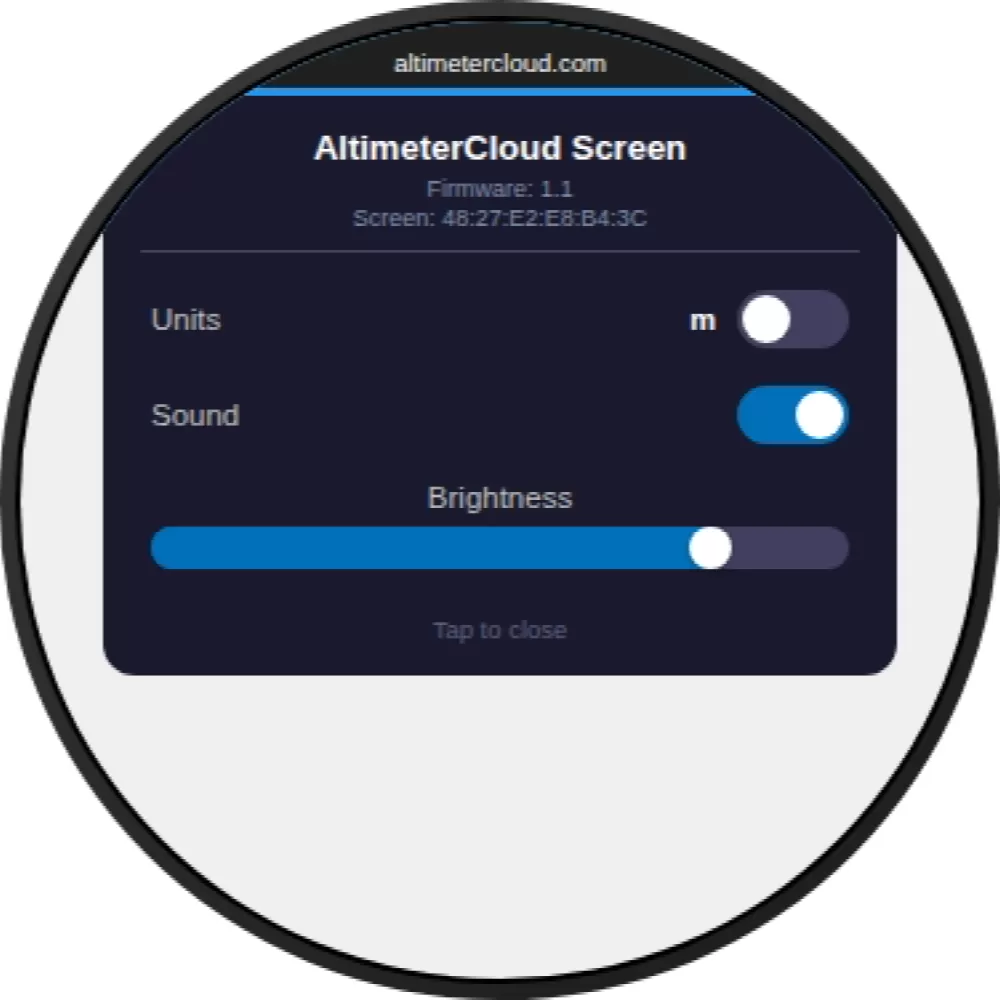
Tap the menu icon in the top right corner to open the screen settings. From here you can toggle between metres and feet, turn the sound on or off, and adjust the screen brightness. The settings overlay also shows the screen's firmware version and its Bluetooth address.
No device connected
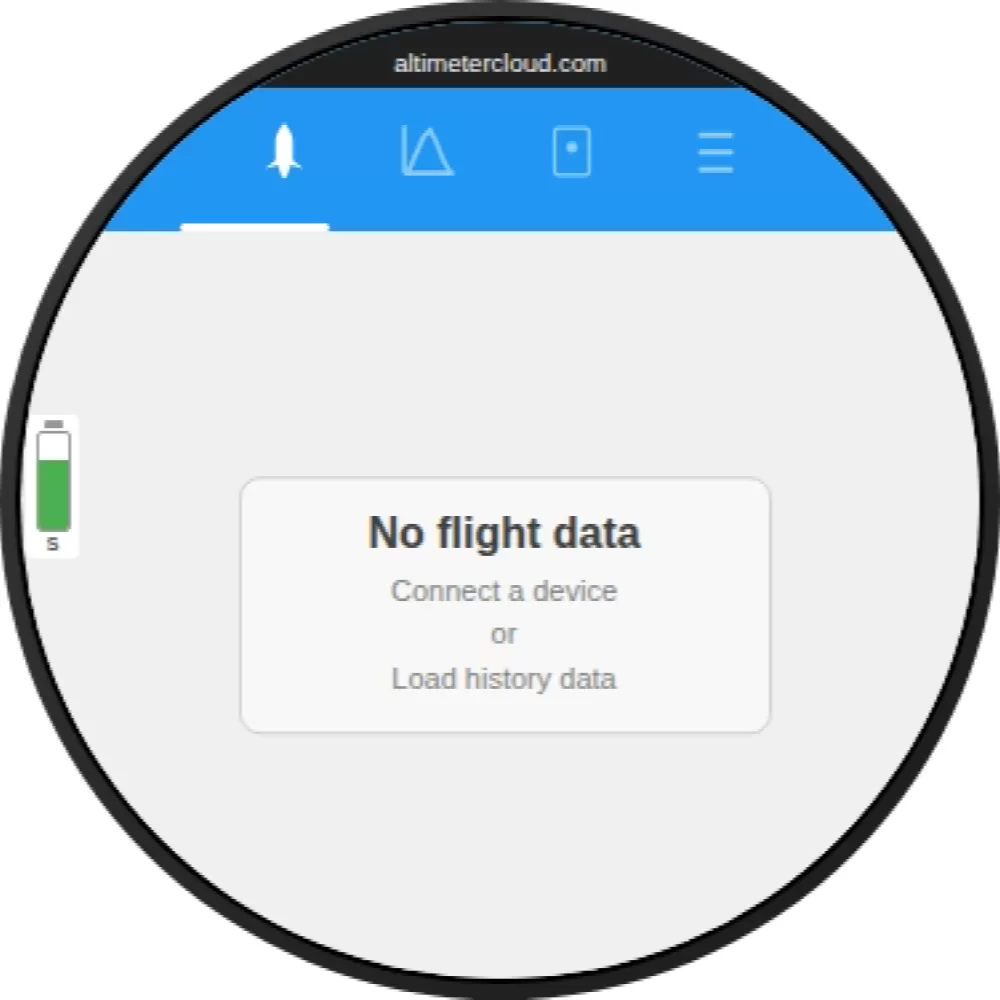
If no Mercury is connected or the Mercury doesn't have any flight data yet, the screen will show a "No flight data" message. Connect a Mercury with a USB cable and ensure it has at least one recorded flight, or load a previous flight from the history tab.