You can upload or restore the firmware on your Nano using our update tool. The Nano is updated over a USB cable using the web-based update tool here on the Altimeter Cloud. You will need a PC or laptop running Google Chrome, Microsoft Edge or Opera for it to work.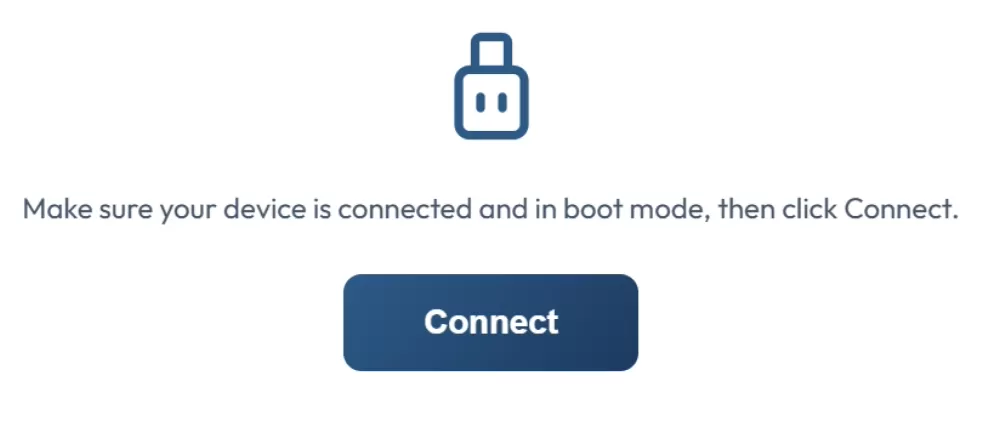
The first step is to connect your Nano to your PC or Laptop with a USB cable and click Connect Device.
You need to ensure the Nano power switch is set to OFF.
You then need to hold down the tiny boot button while connecting the cable to the Nano. This button is positioned near to the USB connector on the top side.
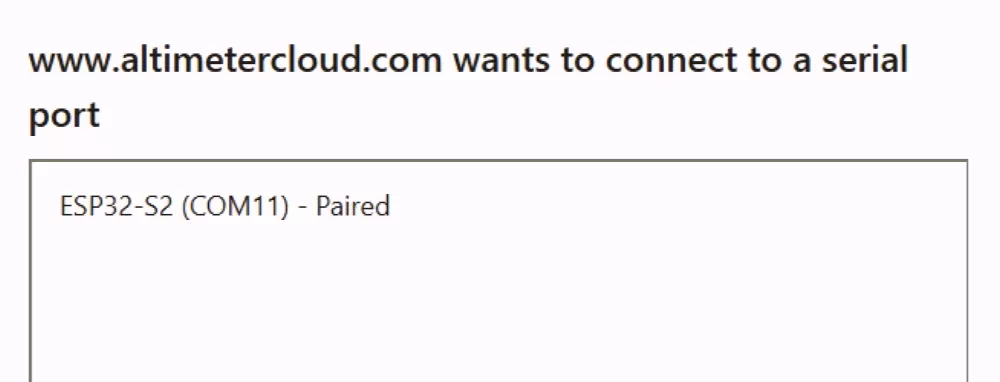
A connection box will then pop up like this one. The Nano should be present in this list as a ESP32-S2 identifier.
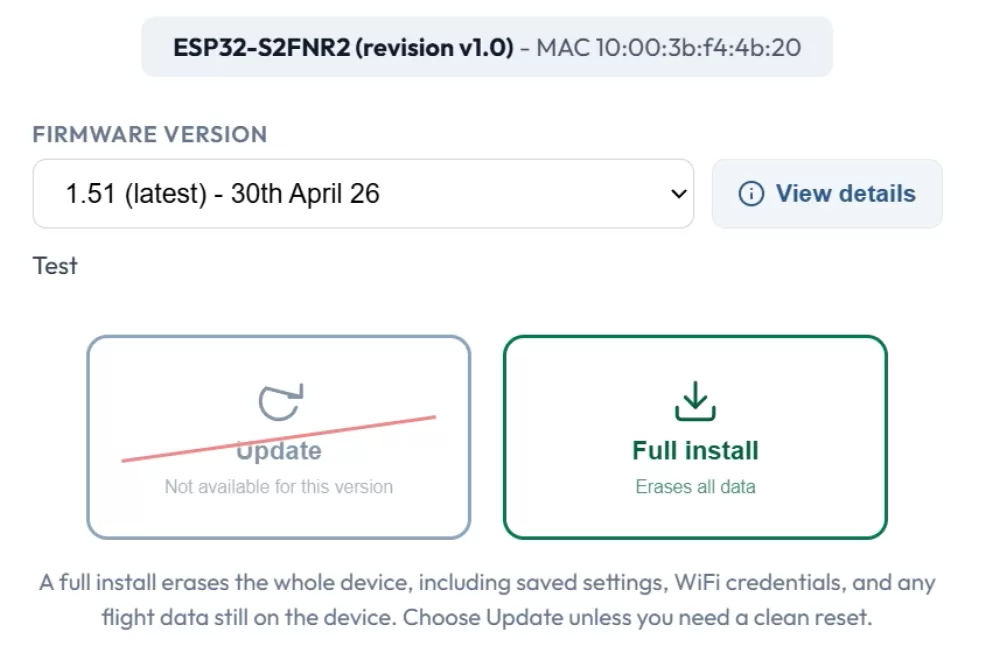
You will now be shown firmware that matches your device's processor unit, which should usually only show you the right firmware.
You can now click the button to install the new firmware.
Update vs Full install
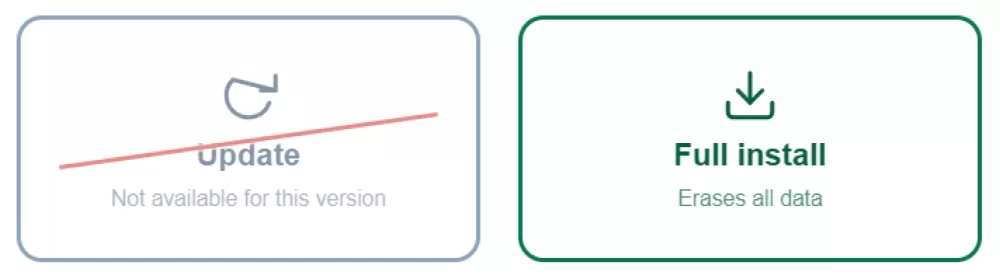
Update only replaces the program on the altimeter and leaves the settings and flight data partition alone.
Full replaces your entire flash memory space. Use this if you've changed the partition layout, erased your device (for example after using it as a dev board), or just want a fresh factory install. The install button turns orange when Full is selected as confirmation.