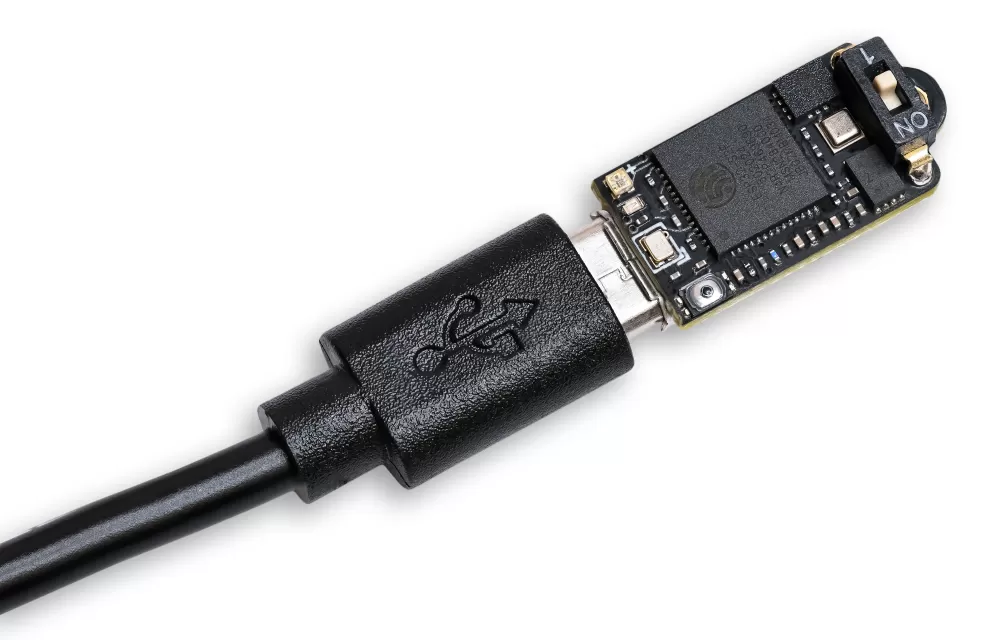
The Nano altimeter has an onboard Micro-USB port. This functions as a USB mass storage device for accessing the files and settings. So you won't need to dig around for a custom reader or cable.
Just connect your Nano to a PC, Laptop, Tablet or Smartphone and you should be able to access your files. The power switch on the Nano should be OFF in USB mode, you don't need to leave the Nano switch on.
iWorth knowing
If you power on the Nano with USB power present it will boot to USB file mode.
If you power on the Nano without USB power present it will boot to flight mode.
On a PC you will see the device called "ALTCLOUD" in your This PC folder.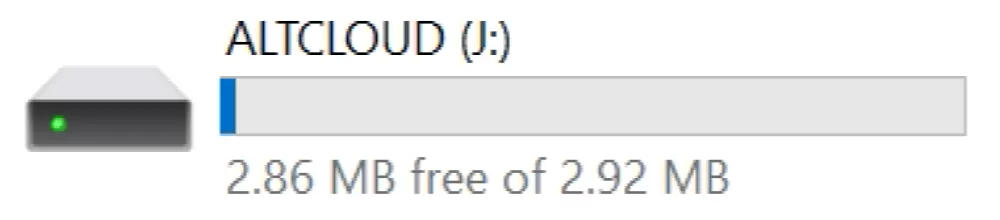
Once you open the drive you will have a few default files, and any flight logs and summaries will also be available here.
You can drag and drop flight logs to the Altimeter Cloud upload tool to view their charts and data in an easy-to-manage format. 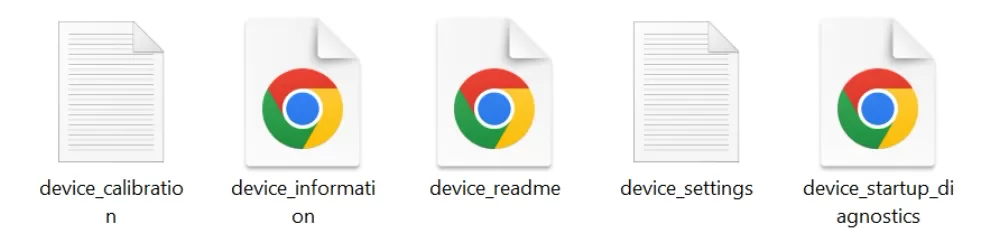
Note: If you have hardware revision 1, 2 or 3 you won't see a device_calibration file as these do not have the IMU sensor.
Note: If you place any files onto the Nano these will be deleted when the Nano starts up; it only keeps its own relevant files.
In the order they are displayed here is what each file is for on the default filesystem.
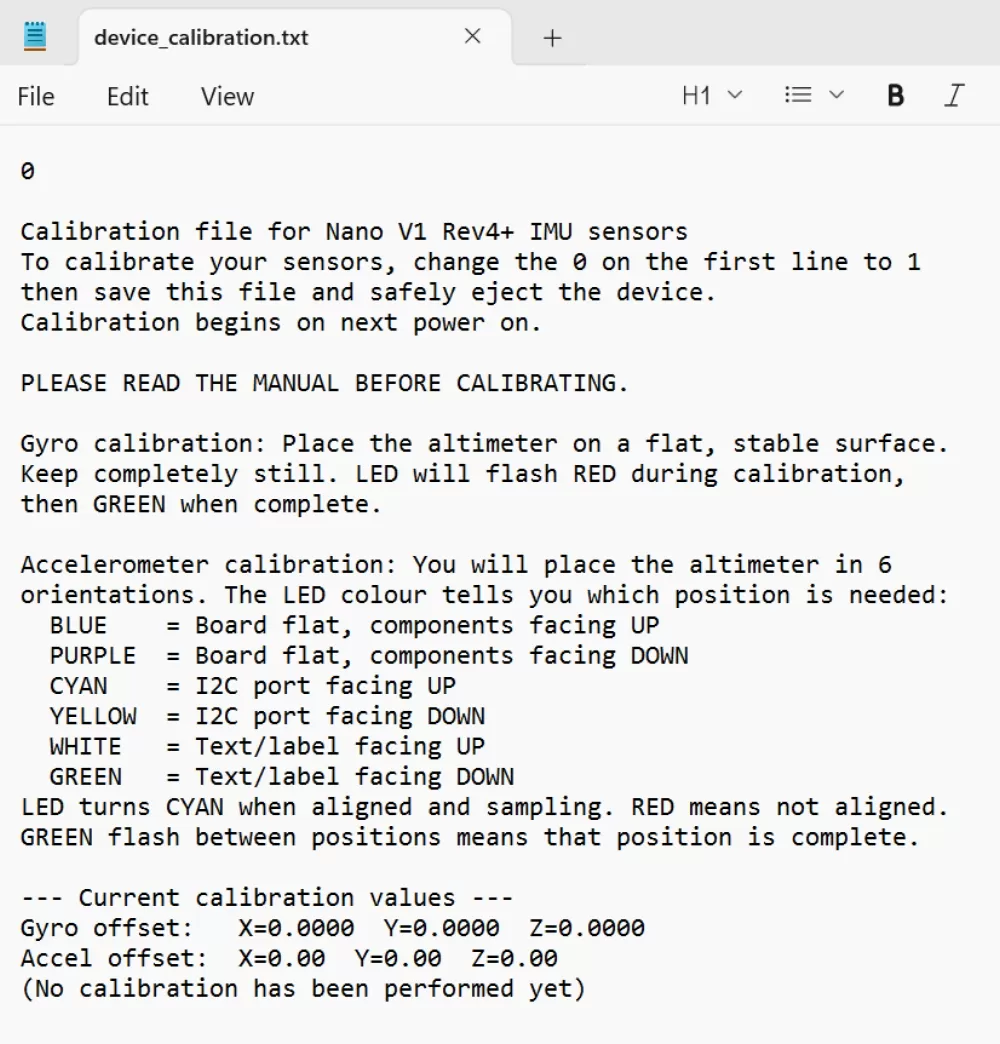 1. device_calibration.txt
This is an editable file that allows you to calibrate the sensors on your Nano altimeter.
Please read the dedicated calibration manual page here to perform this.
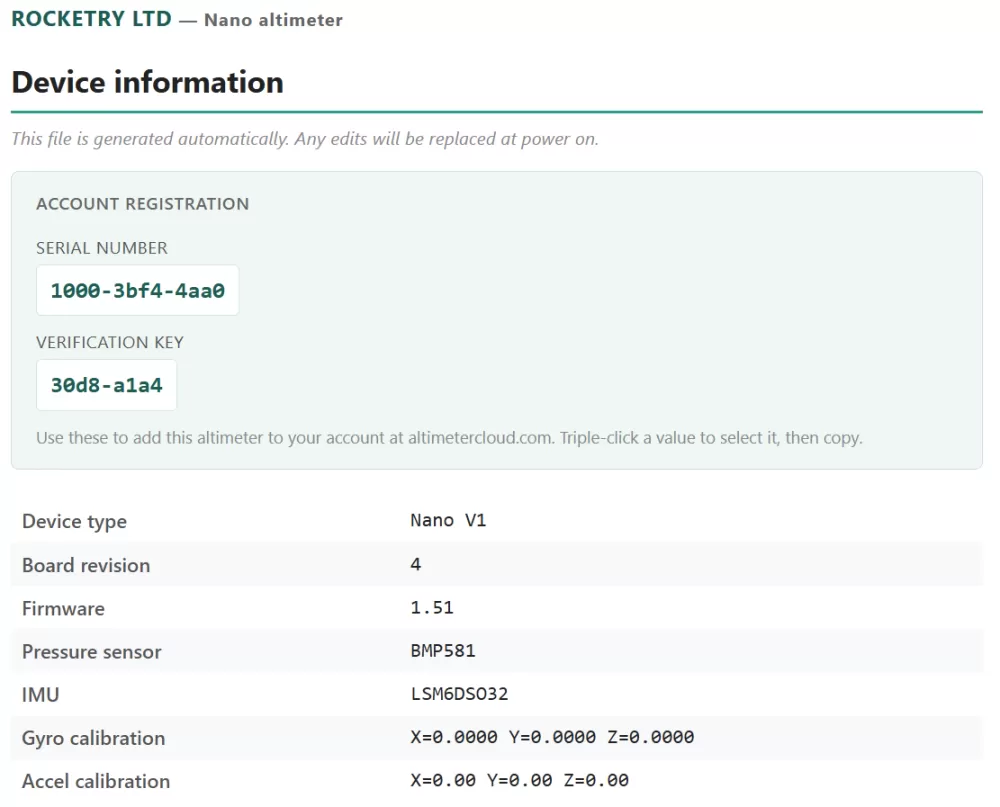 2. device_information.html
This is an HTML page that will load in your web browser. It includes information about your specific Nano altimeter.
It also includes an 8-character verification key and the device's serial number that you will need to add the Nano to your account on the Altimeter Cloud should you wish to do so.
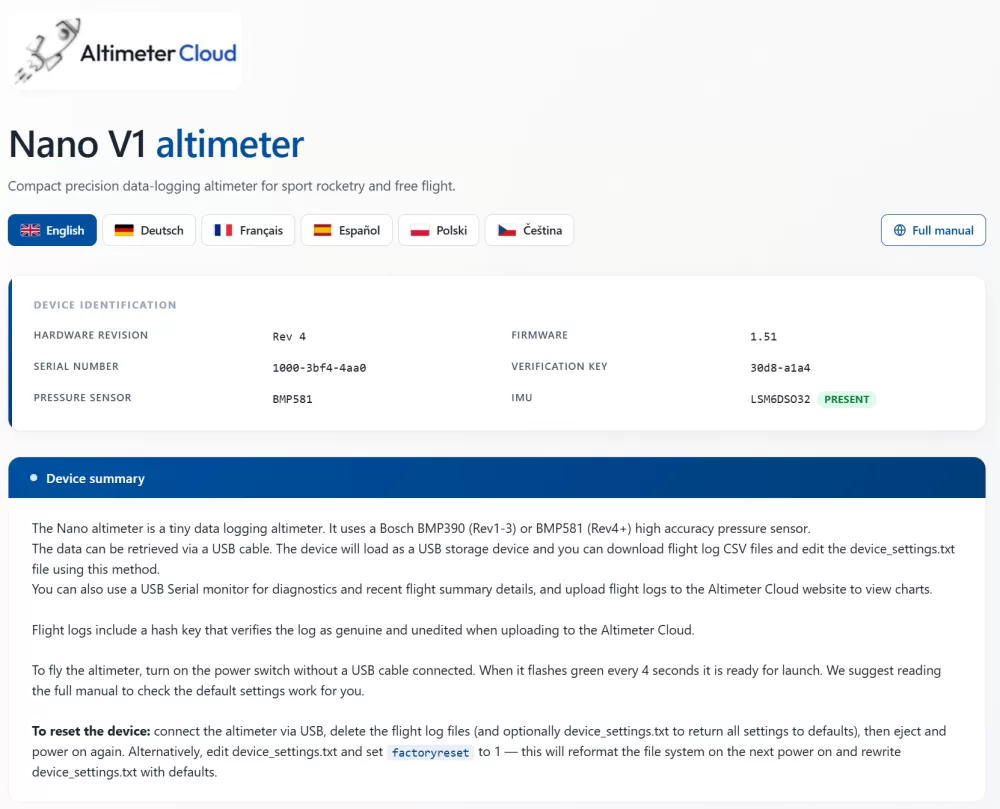 3. device_readme.html
This is an HTML page in several selectable languages that is included on the Nano.
It gives you brief details of how to edit the settings and what the settings do. So if you're stuck in the field without internet you can still access some handy information.
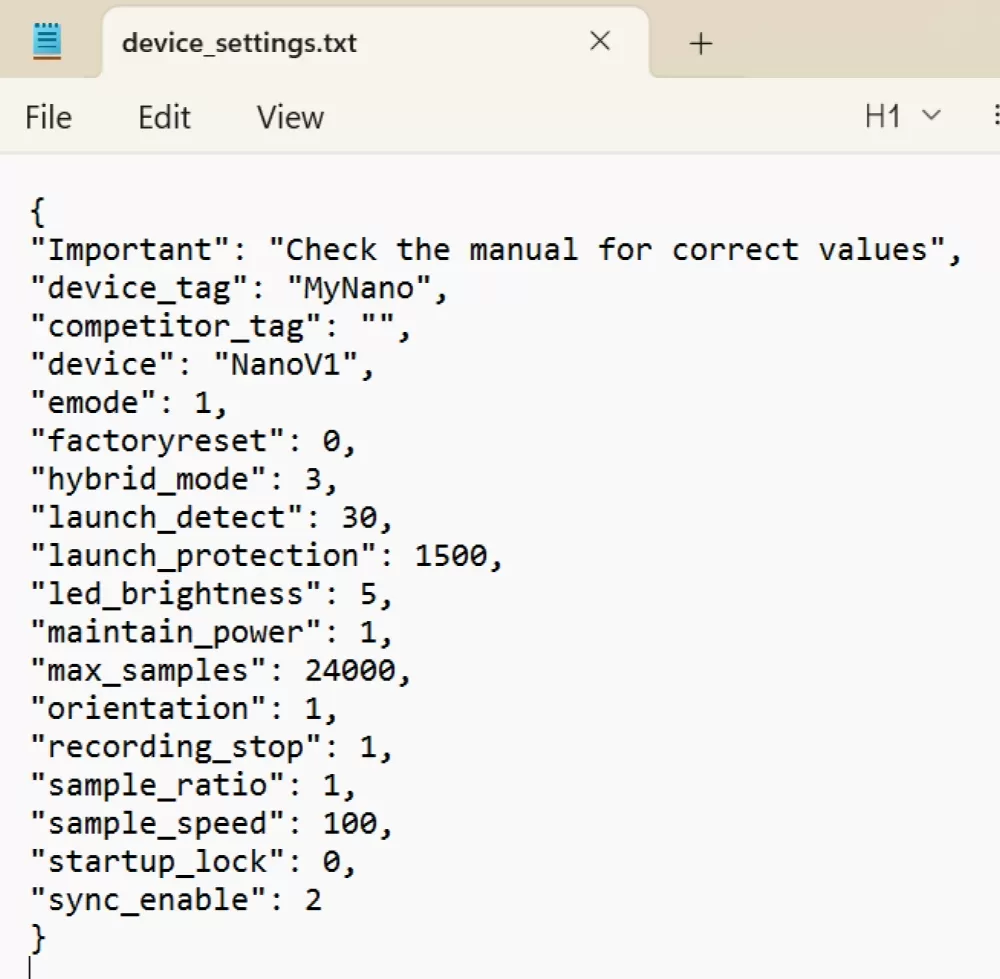 4. device_settings.txt
This text file is the editable JSON format settings file for the Nano.
You can find out more on the settings manual page here.
The main thing to note is that any errors in this file will cause the Nano to replace the file with default values on its next power on. So it's always worth checking the settings manual page for correct values.
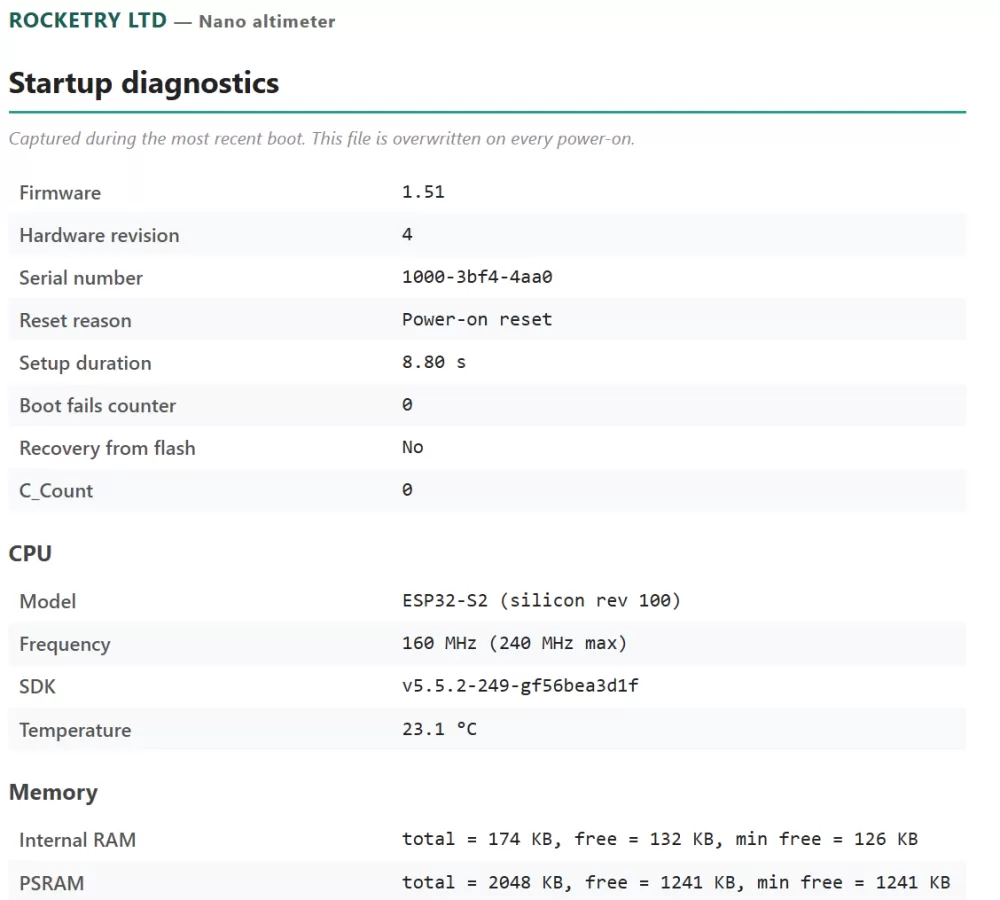 5. device_startup_diagnostics.html
This is an HTML page that will load in your web browser. It includes more in-depth information about your device and the startup process.
It can be handy to attach to your email if you have a problem and need support from us.
6. batterytest.txt
A built-in battery test that measures how long your battery really lasts. The instructions are inside the file, and there is more on the battery page. After a test has run you will also find batterytest.html here with the discharge curve.
Flight logs
Each saved flight adds two files: the flight log itself, flightlog…-N.aclz (or .csv if you have chosen CSV logs), and flightinfo…-N.html, a page you can open in your web browser with a summary of that flight (see the flight info page page). When the drive fills up, or already holds 50 flights, the Nano deletes the oldest flights first to make room for a new one. The log format is described on the flight log format page.
USB tools on the Altimeter Cloud
With firmware 1.60 or later you can also work with the Nano straight from your browser over the same USB cable, using Google Chrome, Microsoft Edge or Opera on a desktop or laptop:
- Nano USB Settings reads and changes every setting without editing the settings file by hand. See the settings page.
- Upload straight from your altimeter lists the flights on the Nano, marks the ones already on the Altimeter Cloud and uploads the rest, without you opening the drive.
Phones and tablets
Some phones and tablets will open the Nano's drive the first time but refuse to open it again. If that happens, set android_compat to 1 in the settings and the Nano will present itself as a new drive each time it starts.
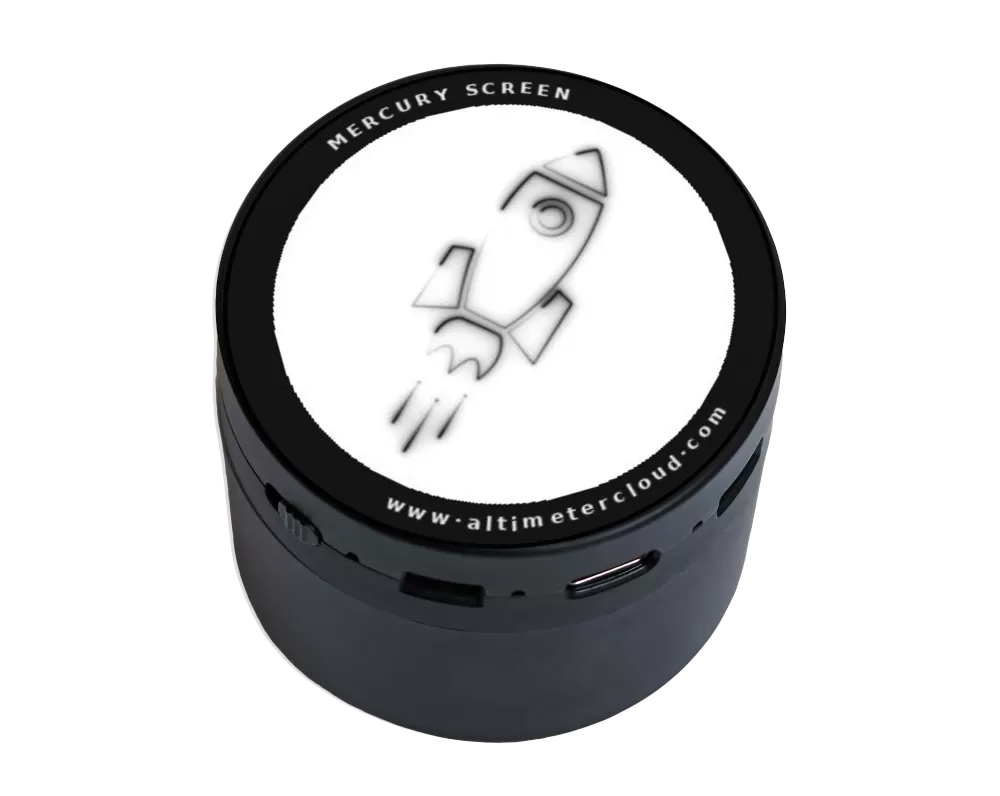 Snapshot screen support
The Nano can also use its USB port to connect to the Snapshot screen. This allows you to view a snapshot of your latest flight and your device settings.
It's a very handy device at competitions where lots of altimeters need to be checked and allows verification that a Nano is blank, its serial number, competitor tag, device tag and numerous other aspects too.
You can find out more about the Snapshot screen here.